OEMM:安装Oracle企业元数据管理器 OEMM: Installing Oracle Enterprise Metadata Manager
Windows和Linux安装同理!
Purpose
This tutorial covers installing OEMM version 12.1.3.0.2 on a Windows PC.
Time to Complete
Approximately 15 minutes.
Introduction
This Oracle By Example (OBE) is first in a series of seven OBEs. The recommendation is to do them in order. The series is:
- Installing OEMM, on a Windows PC (you are currently viewing this OBE).
- Harvesting Metadata from Various Sources: DB, ODI, OBIEE, and others.
- Managing the Configuration and Metadata Stitching with OEMM, including backup and restore.
- Configuring Data Lineage Analysis, graphically and exporting to Excel.
- Using Impact Analysis, the "opposite" of data lineage.
- Creating a Business Glossary in OEMM, using the enterprise edition.
- Administering OEMM, creating users, roles, and scripts.
OEMM stores metadata repository in an Oracle DB which can be anywhere (Linux or Windows). However, if the referenced VM is used (see Software below) then there is an OEMM repository existing in the VM (which happens to be Linux) which will be used in this tutorial. There is also an ODI repository in the VM which will be used for harvesting ODI metadata.
Scenario
Your company has several data integration products from several vendors and you want a single place to go to look for repository metadata. You decide to install Oracle Enterprise Metadata Manager (OEMM) on your Windows PC to read from Linux Oracle Databases and from ODI.
Software and Hardware Requirements
The following is a list of software and hardware requirements used in this Oracle By Example (OBE):
- Software
- Oracle Database 11.2.0.4.0 or higher
- Oracle Business Intelligence Enterprise Edition (OBIEE) was installed at one time, but no longer is installed.
- Oracle Enterprise Metadata Manager (OEMM) 12.1.3.0.2 or higher. The OEMM Install and Setup Guide is available online and in the product itself.
- Oracle Data Integrator (ODI) 12.1.3 or higher. At least one copy of ODI for Windows must be on the same machine as OEMM. (ODI is not a requirement for OEMM, but is a requirement for parts of this OBE.)
- Alternatively, the VM contains Database, ODI, and OEMM sample repositories (but not OEMM software) pre-installed with Oracle Enterprise Linux (OEL) 6.4. The VM (approx 7 GB) requires Oracle VirtualBox to run. The VM is available in either of two places (both are the same VM):
- internally for employees only
- externally on OTN for all students and customers
- Hardware
- At least 2 GB RAM for each target (database or ODI)
- At least 5 GB RAM for the VM (if you are using that)
Prerequisites
Before starting this tutorial, you should:
- Have an account to download Oracle software.
- Have access to or have installed the sample lab artifacts
- Have attended ODI 12c training, [D82167GC10] Oracle Data Integrator 12c: Integration and Administration, or equivalent experience. (ODI is not a requirement for OEMM, but is a requirement for parts of this OBE.)
Typographic Conventions
These are the conventions used throughout this practice to indicate who types what.
Filenameor/path/subdirectory/. Often you can navigate to a destination without having to type it.- Command or value that you type, such as gedit .bashrc. Be mindful of periods at the end of sentences that are not part of the command.
- Click this such as or .
- Some variable or
<variable>as something you replace. Often prefixed with "my" such as<myName>or<myHost>. - A Menu Item or dialog Field Prompt or Tab name. For example, "click the Designer tab and select Models > New Model".
- Generally a red rectangle in the graphics is not part of the original image, but added to draw your attention to an item.
The software can be obtained from several different locations. Choose ONE location from which to fetch the software, either eDelivery OR OTN. They should contain the same images, but occasionally one delivery venue will get ahead or behind another in terms of patches and version releases. Double check to be sure. Both methods require signing in with an Oracle account.
1.1 Download from eDelivery
The Oracle Software Delivery Cloud (a.k.a. eDelivery) requires you to have an Oracle account. If you do not have an account, create one first.
-
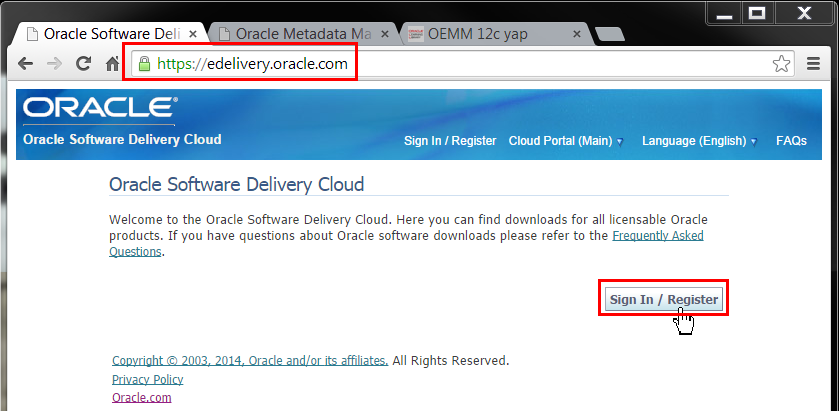
Go to http://edelivery.oracle.com. Sign in to Oracle Software Delivery Cloud.
 Description of this image
Click .
-
Enter your account name and password.
 Description of this image
Click .
-
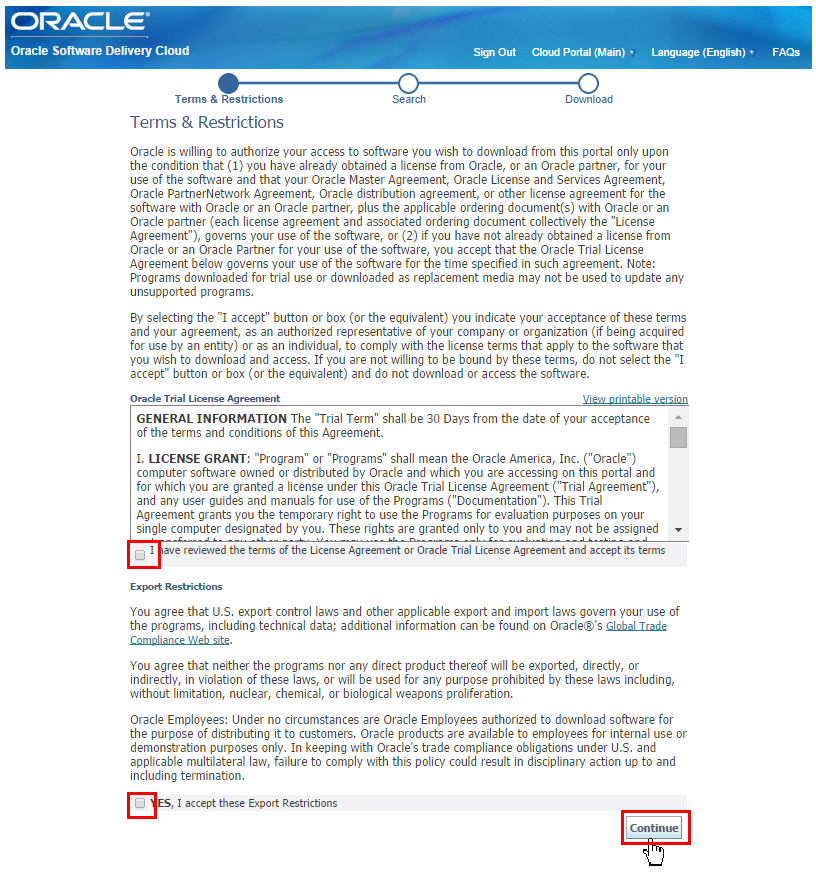
Read and accept the Terms and Restrictions. Select in two places that you accept.
 Description of this image
Click .
-
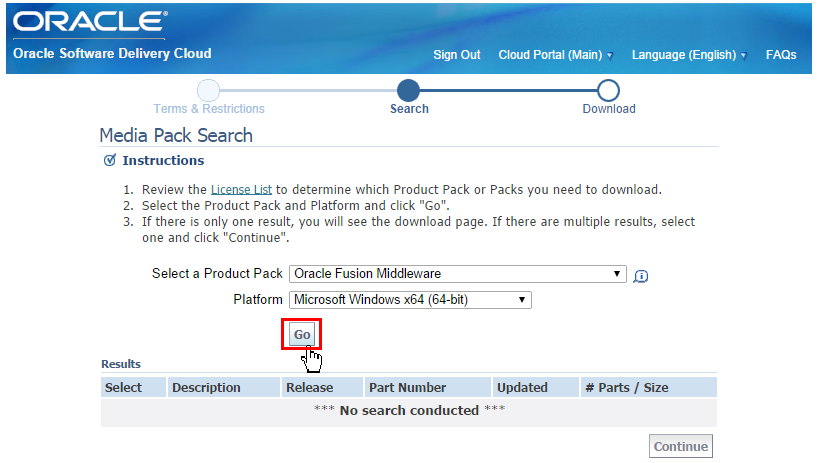
Select Product Pack: Oracle Fusion Middleware, and Platform: Microsoft Windows x64 (64-bit).
 Description of this image
Click .
-
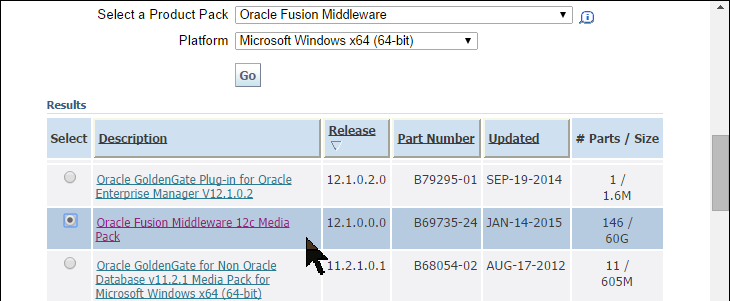
Scroll down and select Oracle Fusion Middleware 12c Media Pack.

 Description of this image
Click .
-
Scroll down and select Oracle Enterprise Metadata Manager.
 Description of this image
Click .


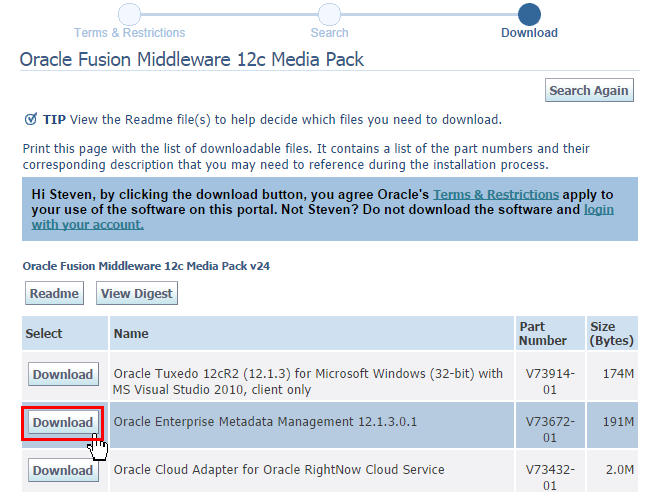
This will download the software from Oracle eDelivery to your PC. Alternatively, you could have used OTN.
1.2 Download from OTN
You have downloaded the software to your PC. Make a note of where your browser downloaded the file.
This is just installing the client on the Windows PC. This assumes that you have a suitable database to act as a repository. The repository could be Windows or Linux, there are several supported platforms. This also assumes you have targets installed, such as ODI or OBIEE.
2.1 Unzip
- Unzip the file into any temporary directory using your unzip tool-of-choice, such as PKZip or 7-Zip. It will create a file named
OMM-win32-801-20141203.exe, approximately 200 MB. (If you have a later release, the last part of the filename will be the later date.)
The installation software is now ready to run.
2.2 Install Wizard
The software is installed, but services need to be started before you can run OEMM.
If you only use OEMM once in a very rare while, you can manually start the Windows Tomcat service each time. If you use OEMM constantly, you may want to autostart the Windows Tomcat service so that it is always running. You can do this directly through WIndows Services, or through menu options. PICK ONE of the options below.
3.1 Manually Start Services
-
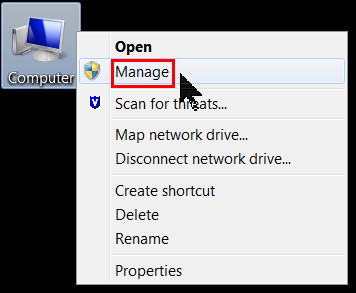
Right-click Computer and click Manage.
 Description of this image
Go to Services and Applications > Services.
-
Scroll down and highlight Oracle Metadata Management.
 Description of this image
Click Start the service. (There are alternate ways to start the service). There is no harm in trying to start it twice, if it is already started.
- A progress bar will display briefly and then the Status should change to Started.
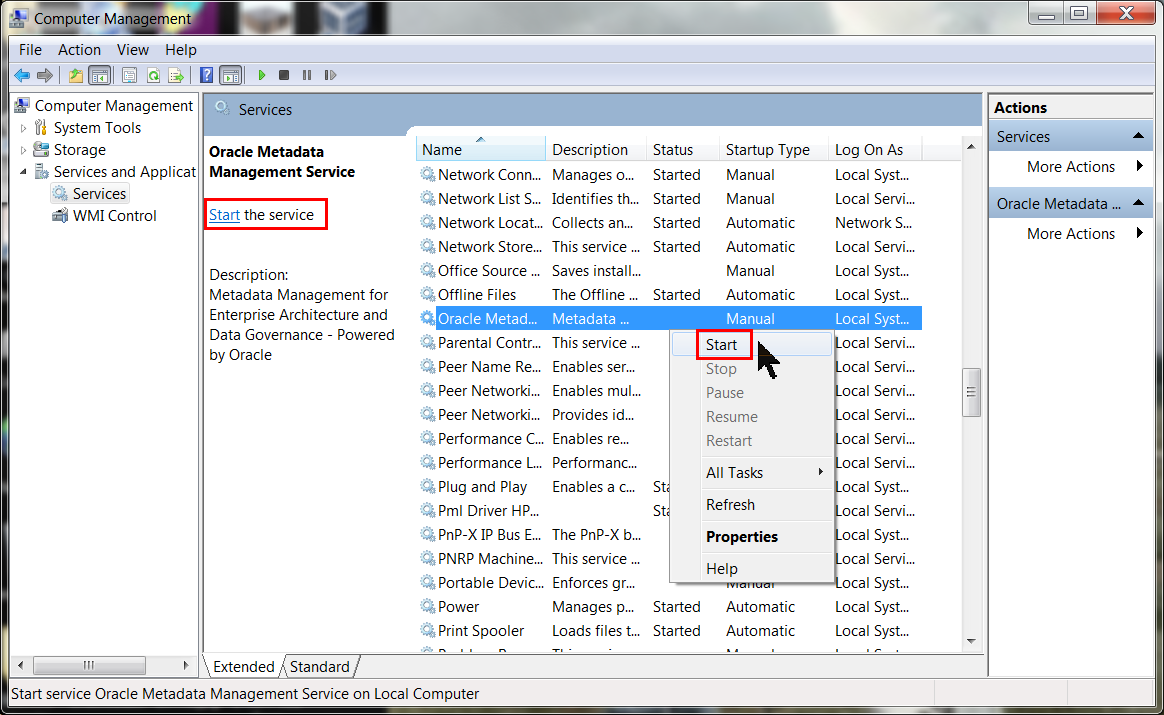
The OEMM service is now started for the duration of this Windows session. However, if you restart Windows you will have to restart OEMM again.
3.2 Automatically Start Services
-
Right-click Computer and click Manage.
 Description of this image
Go to Services and Applications > Services.
-
Scroll down and highlight Oracle Metadata Management.
 Description of this image
Click Properties.
-
Change Startup Type: Automatic (Delayed Start).
 Description of this image
Click .
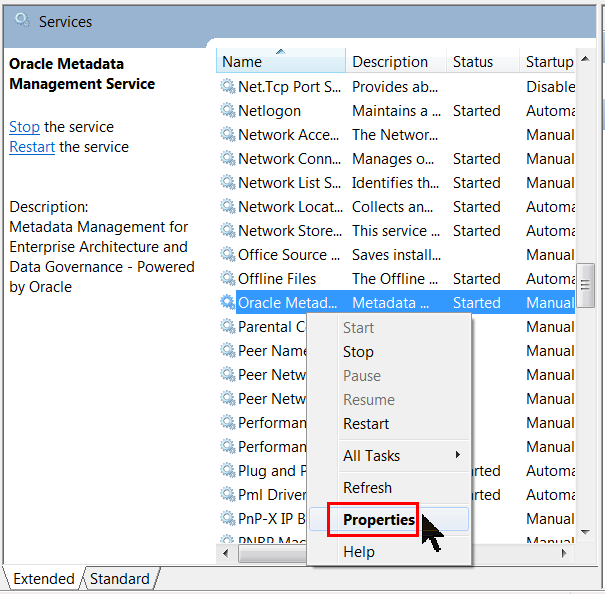
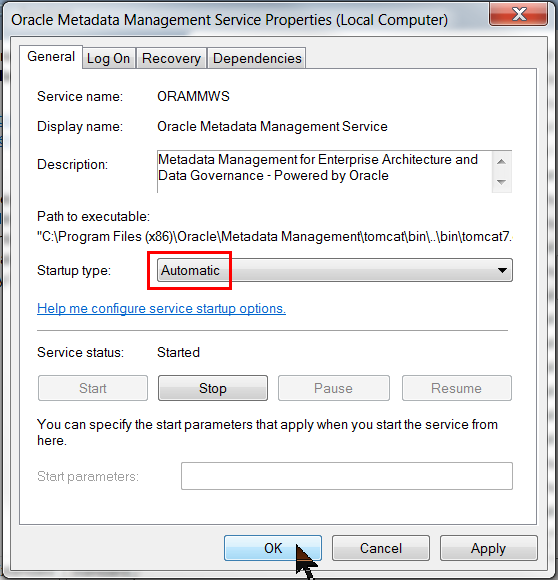
The OEMM service is now started permanently. You can always stop it from this panel.
3.3 Windows Start Menu to Start Services
OEMM Windows Tomcat service is now running.
If you are using the VM, this topic has already been done for you. The database should be configured to use codepage AL32UTF8. To create the database user on a new system, perform the following steps:
4.1 Run Script to Create OEMM Administrator User
The specific minimum permissions for the database user are listed in the OEMM Install and Setup Guide, check there for exact requirements.
-
You can use the script contained in the file here. Copy the file to your host where the database is, and run a command similar to sqlplus / as sysdba @create_oemm_admin.sql to create the schema. You may choose to give your admin user more privileges (but not less).
-
...or you can run these one at a time by hand in SQL*Plus:
Description of this imagecreate user oemmadmn identified by Welcome1; set echo on; grant EXECUTE on CTXSYS.CTX_DDL to oemmadmn; grant EXECUTE on SYS.DBMS_LOCK to oemmadmn; alter user oemmadmn QUOTA unlimited on USERS; grant CREATE SESSION to oemmadmn; grant CREATE PROCEDURE to oemmadmn; grant CREATE SEQUENCE to oemmadmn; grant CREATE TABLE to oemmadmn; grant CREATE TRIGGER to oemmadmn; grant CREATE TYPE to oemmadmn; grant CREATE VIEW to oemmadmn;These get entered at the
SQL>prompt. Instead of a userid/password ofoemmadmn/Welcome1, the VM uses a userid/password ofMITIREP_1203/MITIREP_1203.
This database user is not the same as the OEMM Administrator, which is a Windows user. See steps 5.1.1 versus step 5.1.2.
The database repository user is now created.
To access the OEMM web pages, perform the following steps:
5.1 Login
-
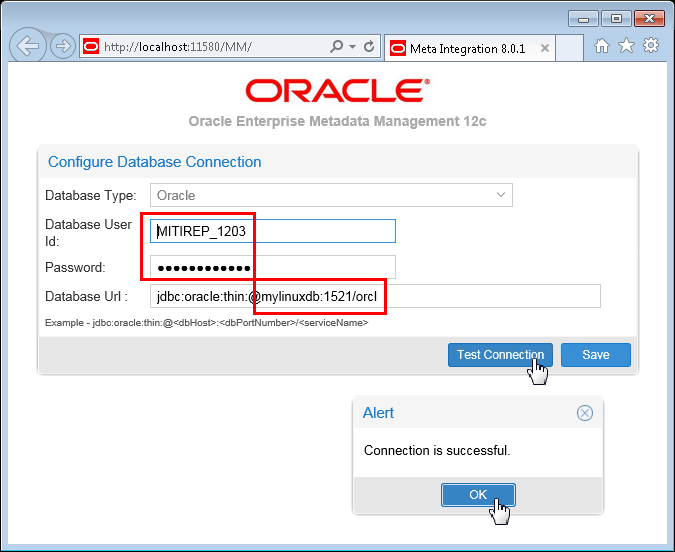
Go to http://localhost:11580/MM/ (the "MM" is case-sensitive). You can do this manually or by clicking the OEMM desktop icon. The first time you start OEMM, it will prompt for Database Connection information.
The sample VM is expecting the following information:
- Database Type: Oracle
- Database User Id: MITIREP_1203 (the "1203" is the release date, that is, Dec 3rd)
- Password: MITIREP_1203 (non-display)
- Database Url: jdbc:oracle:thin:@localhost:1530/orcl
 Description of this image
The Database Url
hostname:portdepends on whether you are running the database and OEMM on the same host or not. If so, then use localhost:1530. If not, then use the actual host IPaddress:portof the database (your address will be different than themylinuxdb:1521shown here, and may be different each day if using DHCP).If the database is running in the virtualbox VM, then the port is probably 1530 instead of the default of
1521.Click . If it is successful, click , then . Subsequent logins should remember this information.
If you connect to a new repository (instead of the VM), then it will create the repository if connected to the DB schema for the first time. For the VM, the repository is already created, therefore it will simply connect to the existing repository in the VM.
If connecting to an existing 12.1.3.0.1 repository, OEMM will upgrade the repository content to 12.1.3.0.2.
-
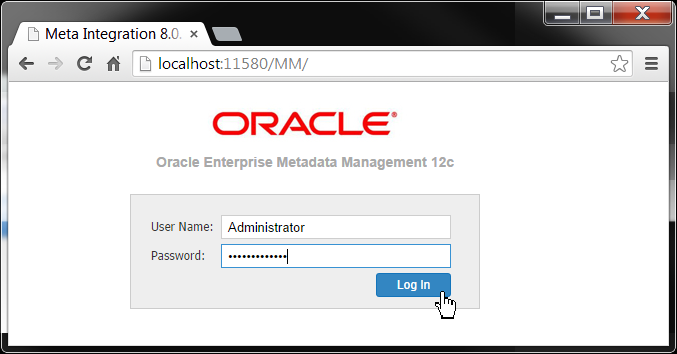
After the connection test, and all subsequent logins, OEMM simply asks for the User Name configured in the repository. The sample VM is expecting the default User Name: Administrator, and Password: Administrator.
 Description of this image
Click . Later in the Administering OEMM OBE, you can add/remove more users, roles, and change the default password for the Administrator.
You are now connected to a given OEMM repository. From here you can see either Metadata Management and/or Metadata Explorer pages.
5.2 Metadata Manager
-
This is the Home page for OEMM. Initially shown is a shrunken page (it is quite long) and you have the option in this OBE to view the full-size page.

You can also click the busy picture in the bottom middle of the home page to enlarge a good flow diagram of OEMM.
- All of the later steps presume that you have configured access to other targets such as ODI and OBIEE.
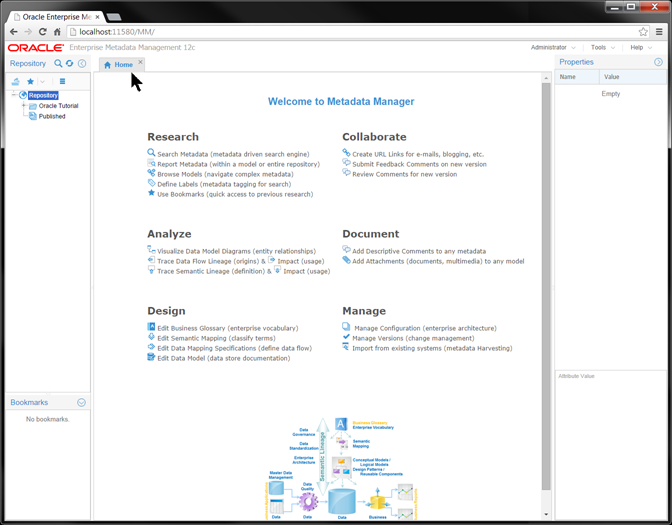
The Metadata Manager is a tab in the browser. If you open the Metadata Explorer, that starts a new tab.
5.3 Metadata Explorer
The Metadata Manager is a tab in the browser. If you open the Metadata Explorer, that starts a new tab.
-
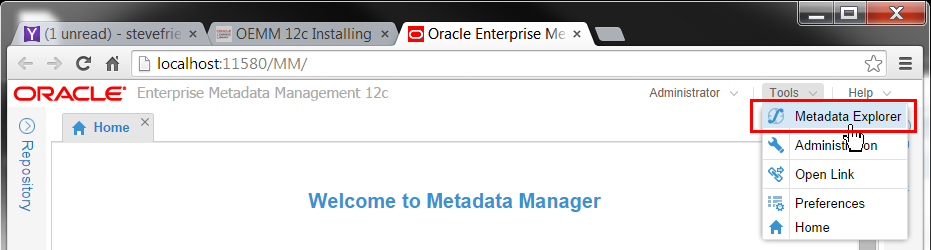
In Metadata Manager, on the top tool bar, click Tools > Metadata Explorer.
 Description of this image
That starts a new tab.
-
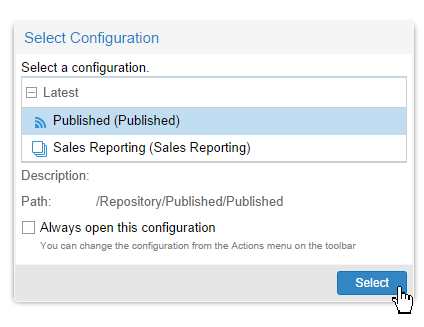
If you have previously viewed configurations, you have the option of picking up where you left off. Pick one.
 Description of this image
Click .
-
Metadata Explorer opens as a tab, and Metadata Manager remains open on the other tab.
 Description of this image
The two screens are very similar.
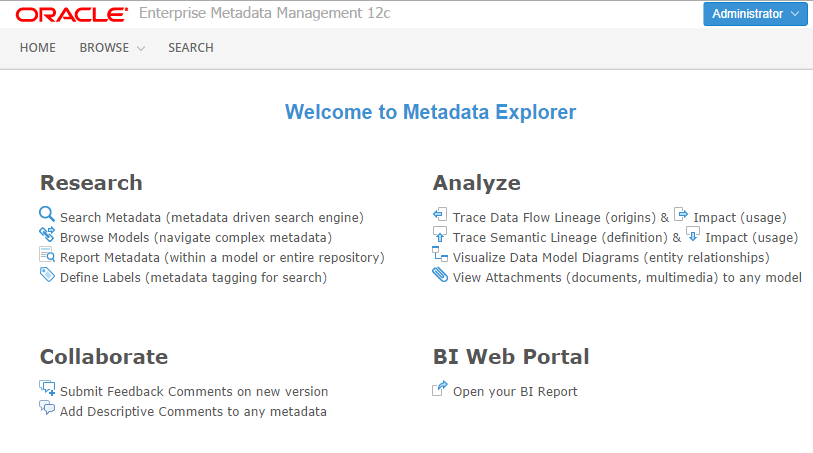
You have now opened Metadata Explorer.
The browser interface is started. You can view Metadata Manager and/or Metadata Explorer as tabs in the browser.
OEMM is a stand-alone Windows-based product that provides a web-based interface into many vendors' data integration products such as Oracle database and ODI. It requires a database to store its information. In this lesson, you downloaded and installed and configured OEMM.
In this tutorial, you learned to:
- Download the OEMM software from one of two locations
- Install the Windows client software
- Start the Windows Tomcat services
- Start the browser to view either Metadata Manager and/or Metadata Explorer
- Create the DB schema on an Oracle database needed for the OEMM repository
Resources
Following is a list of conceptual or procedural Help topics relevant to the topic of this tutorial:
- Product marketing information
- Product documentation in PDF format.
- Virtual Machine demo environment on OTN
- Internal (employee) resources:
- MetaIntegration, the owner of the OEM version of this product.
- To learn more about OEMM, refer to additional OBEs in the Oracle Learning Library <can link to a specific set of OBEs on the subject or product(s)>
目的
本教程介绍了在Windows PC上安装OEMM版本12.1.3.0.2。
完成时间
大约15分钟。
介绍
该Oracle示例(OBE)是七个OBE系列中的第一个。建议按顺序进行操作。该系列是:
- 在Windows PC上安装OEMM (当前正在查看此OBE)。
- 从各种来源收集元数据:DB,ODI,OBIEE等。
- 使用OEMM管理配置和元数据拼接,包括备份和还原。
- 以图形方式配置数据沿袭分析,并导出到Excel。
- 使用Impact Analysis,即数据沿袭的“对立面”。
- 使用企业版在OEMM中创建业务词汇表。
- 管理OEMM,创建用户,角色和脚本。
OEMM将元数据存储库存储在Oracle DB中,该数据库可以在任何地方(Linux或Windows)。但是,如果使用了引用的VM(请参见下面的软件),则该VM(恰好是Linux)中存在一个OEMM存储库,该存储库将在本教程中使用。VM中还有一个ODI存储库,该存储库将用于收集ODI元数据。
情境
您的公司有一些来自多家供应商的数据集成产品,您想在一个地方查找存储库元数据。您决定在Windows PC上安装Oracle Enterprise Metadata Manager(OEMM),以从Linux Oracle数据库和ODI中读取。
软件和硬件要求
以下是此Oracle示例(OBE)中使用的软件和硬件要求的列表:
- 软件
- Oracle Database 11.2.0.4.0或更高版本
- 一次安装了Oracle商业智能企业版(OBIEE),但不再安装。
- Oracle Enterprise Metadata Manager(OEMM)12.1.3.0.2或更高版本。OEMM 安装和设置指南可在线获得,也可以在产品本身中获得。
- Oracle Data Integrator(ODI)12.1.3或更高版本。Windows的ODI至少必须有一个副本与OEMM在同一台计算机上。(ODI不是OEMM的要求,而是本OBE某些部分的要求。)
- 另外,VM包含预装有Oracle Enterprise Linux(OEL)6.4的数据库,ODI和OEMM示例存储库(但不包含OEMM软件)。VM(大约7 GB)需要Oracle VirtualBox才能运行。该VM可在两个位置之一使用(两个都是相同的VM):
- 硬件
- 每个目标(数据库或ODI)至少2 GB RAM
- VM至少有5 GB RAM(如果正在使用)
先决条件
在开始本教程之前,您应该:
- 拥有下载Oracle软件的帐户。
- 可以访问或已安装示例实验室工件
- 参加过ODI 12c培训,[ D82167GC10 ] Oracle Data Integrator 12c:集成和管理,或同等经验。(ODI不是OEMM的要求,而是本OBE某些部分的要求。)
印刷约定
这些是整个实践中使用的约定,用于指示谁键入什么内容。
Filename或/path/subdirectory/。通常,您无需输入即可导航到目的地。- Command或value您键入的内容,例如gedit .bashrc。注意不属于命令部分的句子结尾处的句点。
- 点击这个 如 要么 。
- 一些变量或
<variable>作为您替换的东西。通常以“ my”为前缀,例如<myName>或<myHost>。 - 一个菜单项或对话框字段提示或标签名称。例如,“单击设计器选项卡,然后选择模型>新建模型”。
- 通常,图形中的 红色矩形 不是原始图像的一部分,而是为了引起您对某个项目的关注而添加的。
可以从几个不同的位置获得该软件。选择从中获取软件的一个位置,即eDelivery或OTN。它们应该包含相同的映像,但是就补丁程序和版本发布而言,一个交付地点偶尔会领先于另一个交付地点。仔细检查以确保。两种方法都需要使用Oracle帐户登录。
1.1从eDelivery下载
在Oracle软件交付云(又名eDelivery)需要你有一个Oracle帐户。如果您没有帐户,请先创建一个。
-
转到http://edelivery.oracle.com。登录到Oracle软件交付云。
 此图片的说明
请点击 。
-
输入您的帐户名和密码。
 此图片的说明
请点击 。
-
阅读并接受条款和限制。在您接受的两个地方选择。
 此图片的说明
请点击 。
-
选择产品包:Oracle Fusion Middleware和平台:Microsoft Windows x64(64位)。
 此图片的说明
请点击 。
-
向下滚动并选择Oracle Fusion Middleware 12c Media Pack。

 此图片的说明
请点击 。
-
向下滚动并选择Oracle Enterprise Metadata Manager。
 此图片的说明
请点击 。
这会将软件从Oracle eDelivery下载到您的PC。或者,您可能已经使用过OTN。
1.2从OTN下载
您已将软件下载到PC。记下您的浏览器下载文件的位置。
这只是在Windows PC上安装客户端。假设您有一个适合用作存储库的数据库。该存储库可以是Windows或Linux,有几种受支持的平台。这也假设您已安装目标,例如ODI或OBIEE。
2.1解压缩
- 使用您的解压缩选择工具(例如PKZip或7-Zip)将文件解压缩到任何临时目录中。它将创建一个名为的文件
OMM-win32-801-20141203.exe,大约200 MB。(如果您有更高版本,则文件名的最后一部分将是更高版本。)
安装软件现在可以运行了。
2.2安装向导
已安装该软件,但需要先启动服务,然后才能运行OEMM。
如果您很少使用OEMM一次,则可以每次手动启动Windows Tomcat服务。如果您经常使用OEMM,则可能需要自动启动Windows Tomcat服务,使其始终运行。您可以直接通过Windows服务或菜单选项来执行此操作。PICK ONE下面的选项。
3.1手动启动服务
-
右键单击计算机,然后单击管理。
 此图片的说明
转到服务和应用程序>服务。
-
向下滚动并突出显示Oracle Metadata Management。
 此图片的说明
单击启动服务。(有其他方法可以启动服务)。尝试将其启动两次(如果已启动)没有任何危害。
- 进度条将短暂显示,然后状态应更改为已启动。
现在,在此Windows会话期间将启动OEMM服务。但是,如果重新启动Windows,则必须再次重新启动OEMM。
3.2自动启动服务
-
右键单击计算机,然后单击管理。
 此图片的说明
转到服务和应用程序>服务。
-
向下滚动并突出显示Oracle Metadata Management。
 此图片的说明
单击属性。
-
更改启动类型:自动(延迟启动)。
 此图片的说明
请点击 。
现在,OEMM服务将永久启动。您随时可以在此面板上将其停止。
3.3 Windows开始菜单以启动服务
OEMM Windows Tomcat服务现在正在运行。
如果您使用的是VM,则已经为您完成了本主题。数据库应配置为使用代码页AL32UTF8。要在新系统上创建数据库用户,请执行以下步骤:
4.1运行脚本以创建OEMM管理员用户
《 OEMM安装和设置指南》中列出了数据库用户的特定最低权限 ,请在此处查看确切的要求。
-
您可以在此处使用文件中包含的脚本。将文件复制到数据库所在的主机,然后运行类似于sqlplus / as sysdba @create_oemm_admin.sql创建架构的命令。您可以选择给您的管理员用户更多的特权(但不能少于)。
-
...或者您可以一次在SQL * Plus中手动运行这些代码:
此图片的说明create user oemmadmn identified by Welcome1; set echo on; grant EXECUTE on CTXSYS.CTX_DDL to oemmadmn; grant EXECUTE on SYS.DBMS_LOCK to oemmadmn; alter user oemmadmn QUOTA unlimited on USERS; grant CREATE SESSION to oemmadmn; grant CREATE PROCEDURE to oemmadmn; grant CREATE SEQUENCE to oemmadmn; grant CREATE TABLE to oemmadmn; grant CREATE TRIGGER to oemmadmn; grant CREATE TYPE to oemmadmn; grant CREATE VIEW to oemmadmn;这些将在
SQL>提示符下输入。oemmadmn/Welcome1VM使用的用户标识/密码代替的用户标识/密码MITIREP_1203/MITIREP_1203。
该数据库用户不同于Windows用户,即OEMM Administrator。请参阅步骤5.1.1与步骤5.1.2。
现在已创建数据库存储库用户。
要访问OEMM网页,请执行以下步骤:
5.1登录
-
转到http:// localhost:11580 / MM /(“ MM”区分大小写)。您可以手动执行此操作,也可以单击OEMM桌面图标。首次启动OEMM时,它将提示您输入数据库连接信息。
示例VM需要以下信息:
- 数据库类型:Oracle
- 数据库用户ID :(MITIREP_1203 “ 1203”是发布日期,即12月3日)
- 密码:(MITIREP_1203 不显示)
- 数据库网址: jdbc:oracle:thin:@localhost:1530/orcl
 此图片的说明
数据库URL
hostname:port取决于您是否在同一主机上运行数据库和OEMM。如果是这样,请使用localhost:1530。如果不是,则使用address:port数据库的实际主机IP (您的地址将与mylinuxdb:1521此处显示的地址不同,如果使用DHCP,则每天可能都不同)。如果数据库在virtualbox VM中运行,则该端口可能1530不是默认端口
1521。请点击 。如果成功,请单击, 然后 。随后的登录应该记住该信息。
如果您连接到新的存储库(而不是VM),那么如果是第一次连接到数据库架构,它将创建存储库。对于VM,该存储库已创建,因此它将仅连接到VM中的现有存储库。
如果连接到现有的12.1.3.0 .1存储库,则OEMM会将存储库内容升级到12.1.3.0 .2。
-
连接测试和所有后续登录之后,OEMM只需询问在存储库中配置的用户名。示例VM期望使用默认的User Name(用户名 Administrator)和Password(密码) Administrator。
 此图片的说明
请点击 。稍后在“管理OEMM OBE”中,您可以添加/删除更多用户,角色,并更改管理员的默认密码。
现在,您已连接到给定的OEMM存储库。在这里,您可以查看“元数据管理”和/或“元数据资源管理器”页面。
5.2元数据管理器
-
这是OEMM的主页。最初显示的是缩小的页面(很长),您可以在此OBE中选择查看完整页面。

您也可以单击主页底部中间的繁忙图片,以放大OEMM的流程图。
- 以后的所有步骤均假定您已配置对其他目标(如ODI和OBIEE)的访问权限。
Metadata Manager是浏览器中的一个选项卡。如果您打开Metadata Explorer,则将启动一个新选项卡。
5.3元数据资源管理器
Metadata Manager是浏览器中的一个选项卡。如果您打开Metadata Explorer,则将启动一个新选项卡。
-
在Metadata Manager中,在顶部工具栏上,单击Tools> Metadata Explorer。
 此图片的说明
这将启动一个新选项卡。
-
如果您以前查看过配置,则可以选择从上次中断的地方接机。选一个。
 此图片的说明
请点击 。
-
Metadata Explorer将作为一个选项卡打开,而Metadata Manager则在另一个选项卡上保持打开状态。
 此图片的说明
这两个屏幕非常相似。
现在,您已经打开了Metadata Explorer。
浏览器界面已启动。您可以在浏览器中的选项卡中查看Metadata Manager和/或Metadata Explorer。
OEMM是基于Windows的独立产品,可为许多供应商的数据集成产品(例如Oracle数据库和ODI)提供基于Web的界面。它需要一个数据库来存储其信息。在本课程中,您下载并安装并配置了OEMM。
在本教程中,您学习了:
- 从两个位置之一下载OEMM软件
- 安装Windows客户端软件
- 启动Windows Tomcat服务
- 启动浏览器以查看Metadata Manager和/或Metadata Explorer
- 在OEMM存储库所需的Oracle数据库上创建数据库模式
资源资源
以下是与本教程主题相关的概念性或过程性帮助主题的列表:
- 产品营销信息
- PDF格式的产品文档。
- OTN上的虚拟机演示环境
- 内部(员工)资源:
- MetaIntegration,此产品的OEM版本的所有者。
- 要了解有关OEMM的更多信息,请参考Oracle学习库中的其他OBE <可以链接到主题或产品上的一组特定的OBE>
Linux系统把压缩包解压后,直接到下面的Tomcat目录执行start.sh启动即可!
/usr/local/OracleMetadataManagement/tomcat/bin/startup.sh
http://192.168.111.10:23580/MM/Manager
https://www.oracle.com/webfolder/technetwork/tutorials/obe/fmw/odi/oemm_12c/oemm_install.html#overview
https://www.oracle.com/technetwork/middleware/oemm/documentation/omm-installation-guide-2438395.pdf

 浙公网安备 33010602011771号