Linux纯软件Sunshine与Moonlight极低延迟安卓副屏幕解决方案(新增远控设置)
前言
经过和一些大佬讨论,windows和linux局域网下副屏幕方案应该还是这个最佳。远程控制的话,花样很多,有钱建议无脑直接冲todesk最高级别会员,或者向日葵之类的。如果考虑性价比,不太追求安全性和技术性,可以直接走网易uu远程,但是不知道啥时候付费。win如果有技术力,可以直接自己配置走windows自带的drp。linux的话,本文方法应该是最好的,免费而且全部开源,建议再加一个todesk备用,目前还在测试阶段。
emm,现在把todesk换成了rustdesk,质量好还不限制。我之前不知道todesk还限制免费连接次数……rustdesk也很不错。之前局域网测试有点卡造成了偏见。然后是我自己还添加了远程开机,发魔术包完成的。ether-wake命令。并且解决了我自己这边开机要tty才能启动桌面的问题,直接tty自动启动了。
时间性价比最高的方案是rustdesk+tailscaled。
局域网下副屏幕方案
发布本文的原因是,网上其他类似的配置方法都具有一定的局限性,比如需要显卡欺骗器、或者极其复杂需要其他开源软件,而本方案直接快捷,希望能直接帮助到大家(可能是因为自己比较懒惰🧐)。
本文将介绍如何通过 Sunshine + Moonlight 在 Linux 下将安卓平板设置为一块极低延迟的扩展屏幕。基于我个人的实际配置,以下是详细步骤和优化方案。
后续进一步更新了远程控制方案。
硬件环境
以下是我的设备配置(仅供参考):
OS: Arch Linux x86_64
Host: ThinkBook 16 G4+ ARA
Kernel: Linux 6.12.6-zen1-1-zen
WM: bspwm (X11)
CPU: AMD Ryzen 7 6800H
GPU: AMD Radeon 680M (Integrated)
Display (Internal): 2560x1600 @ 120 Hz
Display (External-1): 3840x2160 @ 50 Hz
Display (External-2): 2880x1800 @ 144 Hz (Android tablet as second screen)
第一步:安装 Sunshine
在电脑上安装 Sunshine
在 Arch Linux 下可以直接安装 Sunshine:
yay -S sunshine
安装完成后,启动 Sunshine:
systemctl start sunshine
打开浏览器访问 https://localhost:47990/ 进入 Sunshine 的管理页面,首次使用需要设置登录密码。
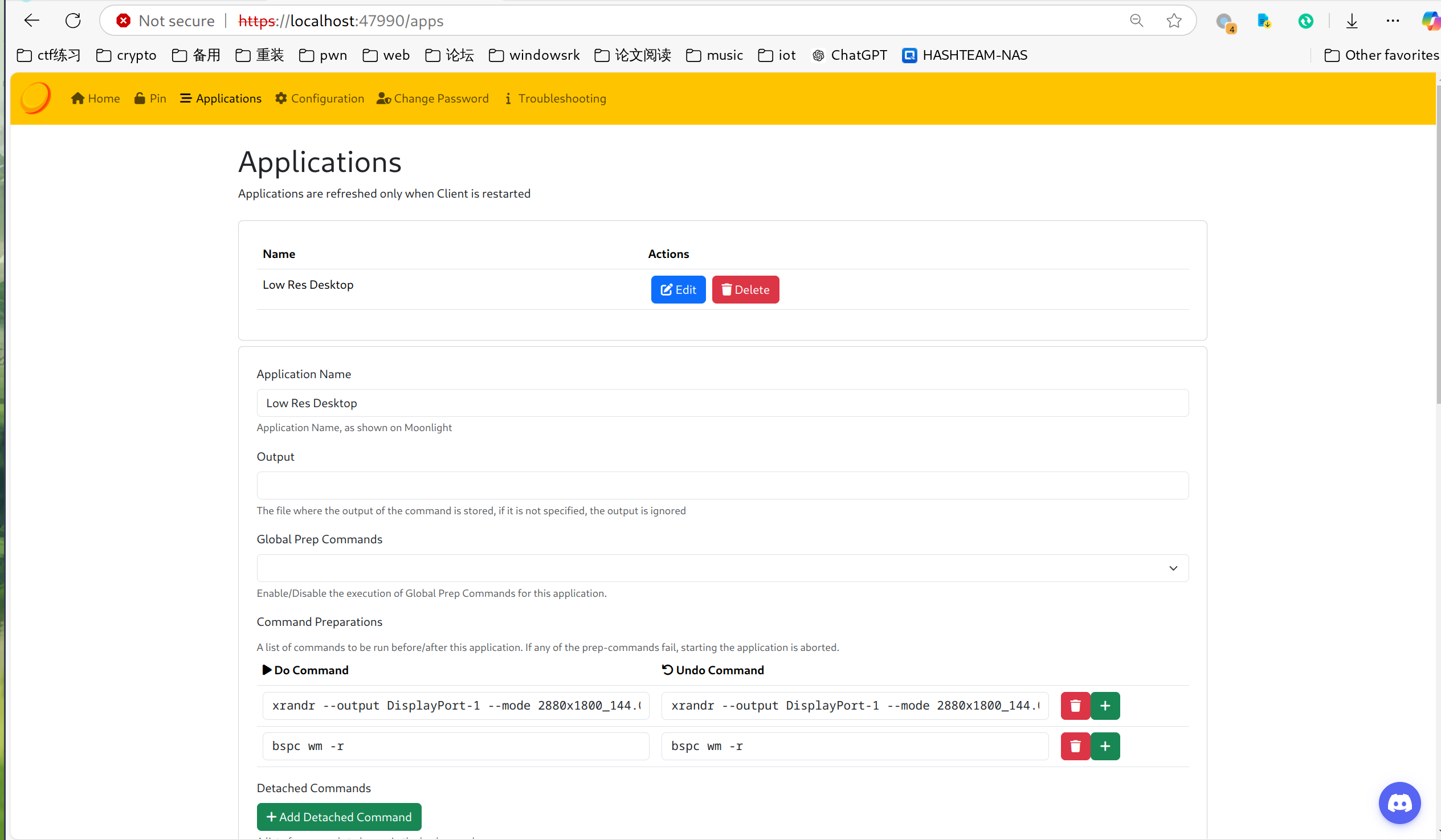
在 Applications 页面配置 do command 和 undo command,如下所示:
- do command 和 undo command:
xrandr --output DisplayPort-1 --mode 2880x1800_144.00 --rate 144.00
以上命令将在后续部分详细介绍。
第二步:平板安装 Moonlight
在安卓平板上,通过 Google Play 或其他渠道安装 Moonlight。安装完成后,你可以直接在设置中调整分辨率和刷新率,以达到最佳显示效果。
第三步:Linux 配置屏幕
在 Linux 中,我们通过 xrandr 工具来管理显示器。
1. 查看当前显示器信息
执行以下命令查看所有连接的显示器及分辨率信息:
xrandr
我的设备输出如下:
Screen 0: minimum 320 x 200, current 9280 x 2160, maximum 16384 x 16384
eDP connected primary 2560x1600+0+0 (normal left inverted right x axis y axis) 344mm x 215mm
   2560x1600    120.02*+  60.03
HDMI-A-0 connected 3840x2160+2560+0 (normal left inverted right x axis y axis) 600mm x 340mm
   3840x2160     60.00 +  50.00
DisplayPort-0 disconnected (normal left inverted right x axis y axis)
DisplayPort-1 disconnected 2880x1800+6400+41 (normal left inverted right x axis y axis) 0mm x 0mm
   2880x1800_144.00  95.03*
DisplayPort-2 disconnected (normal left inverted right x axis y axis)
DisplayPort-3 disconnected (normal left inverted right x axis y axis)
DisplayPort-4 disconnected (normal left inverted right x axis y axis)
DisplayPort-5 disconnected (normal left inverted right x axis y axis)
DisplayPort-6 disconnected (normal left inverted right x axis y axis)
通过 xrandr 确定平板所使用的 DisplayPort-1 接口。平板的分辨率为 2880x1800,支持 144Hz。
2. 添加新的分辨率模式
运行以下命令为平板显示器添加自定义分辨率模式:
cvt 2880 1800 144
输出类似以下内容:
# 2880x1800 144.00 Hz (CVT 2.60M9) hsync: 188.47 kHz; pclk: 711.00 MHz
Modeline "2880x1800_144.00"  711.00  2880 3128 3448 4016  1800 1803 1811 1863 -hsync +vsync
然后执行以下命令:
xrandr --newmode "2880x1800_144.00" 711.00 2880 3128 3448 4016 1800 1803 1811 1863 -hsync +vsync
xrandr --addmode DisplayPort-1 2880x1800_144.00
配置完成后,可以通过 xrandr 启用该模式:
xrandr --output DisplayPort-1 --mode 2880x1800_144.00 --rate 144.00
3. 配置 Sunshine 的命令
将上述 xrandr 命令填入 Sunshine 的 do command 和 undo command 中:
-
do command:
xrandr --output DisplayPort-1 --mode 2880x1800_144.00 --rate 144.00 -
undo command:
xrandr --output DisplayPort-1 --off
4. 桌面管理器重启 (可选)
如果像我一样使用 bspwm 桌面管理器,可以通过以下命令快速重启管理器,刷新屏幕布局:
bspc wm -r
第四步:使用 ARandR 快速调整屏幕位置
ARandR 是一个图形化工具,可以方便地调整屏幕布局。
安装 ARandR
在 Arch Linux 下安装 ARandR:
sudo pacman -S arandr
打开 ARandR 后,可以通过拖拽的方式调整屏幕的位置和排列。例如,将平板拖动到主显示器的右侧或其他位置。
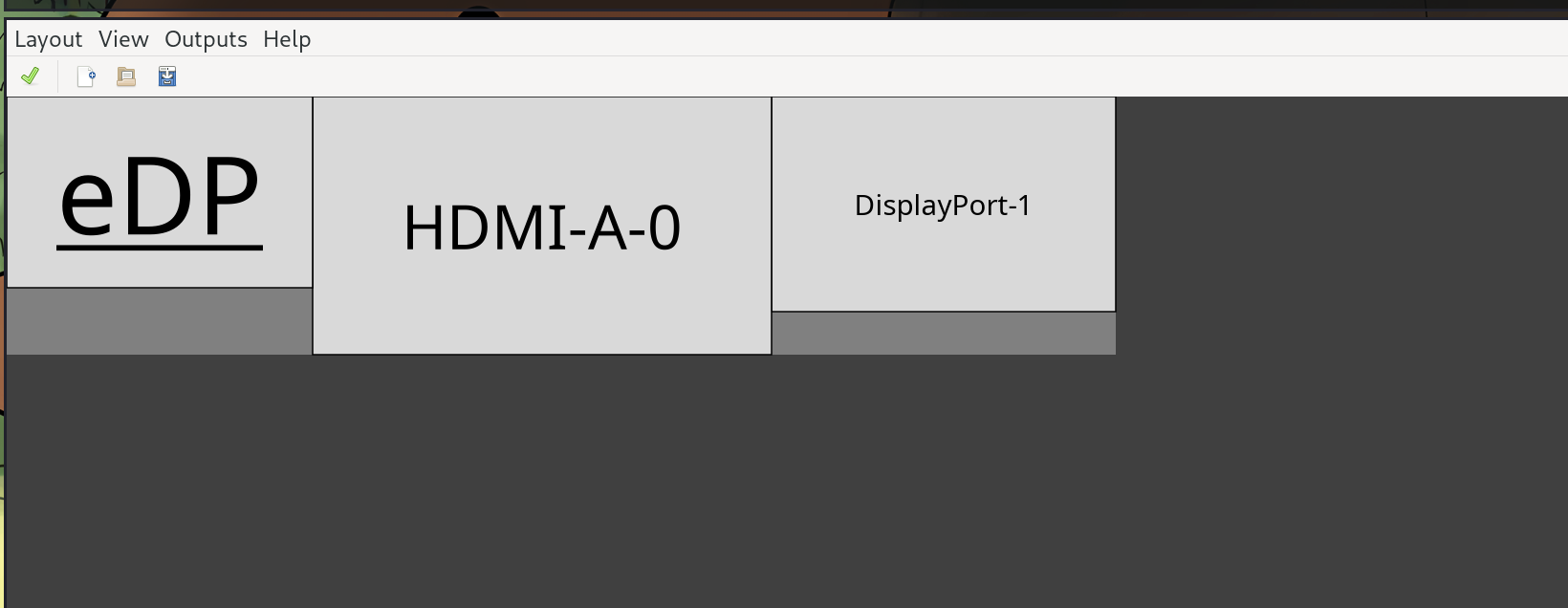
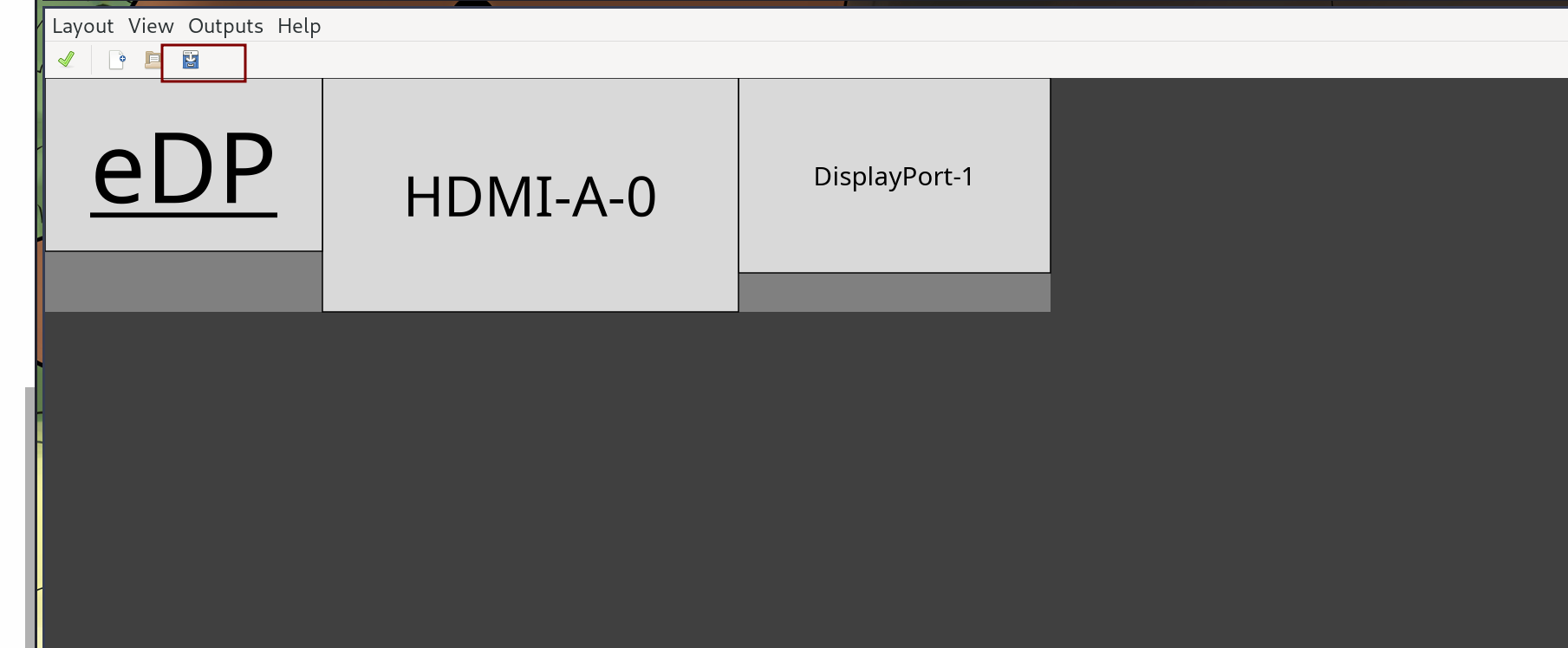
点击右上角保存按钮:
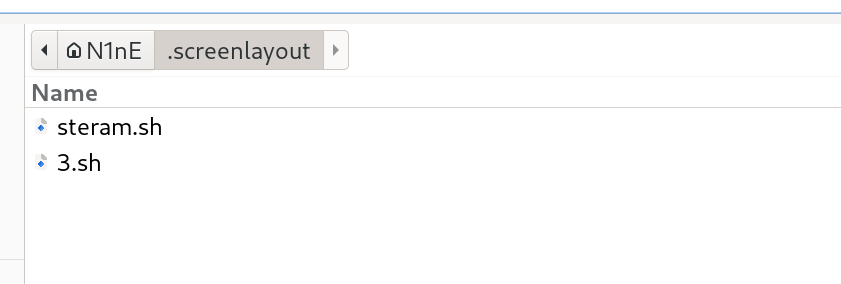
保存到相应位置,例如 ~/.screenlayout/myscreen.sh:
将生成的脚本添加到系统启动项中,以便每次启动自动应用。
我的屏幕启动脚本
以下是我的屏幕启动脚本内容:
cvt 2880 1800 144
xrandr --newmode "2880x1800_144.00" 711.00 2880 3128 3448 4016 1800 1803 1811 1863 -hsync +vsync
xrandr --addmode DisplayPort-1 2880x1800_144.00
sh ~/.screenlayout/myscreen.sh
第五步:平板与电脑连接
完成上述配置后,打开 Moonlight,搜索 Sunshine 提供的设备(你的电脑)。按照提示输入 PIN 码完成配对。
连接成功后,平板即可作为一块独立的扩展屏幕使用,分辨率、刷新率根据你的设置进行应用。
连接后的效果如下图所示:
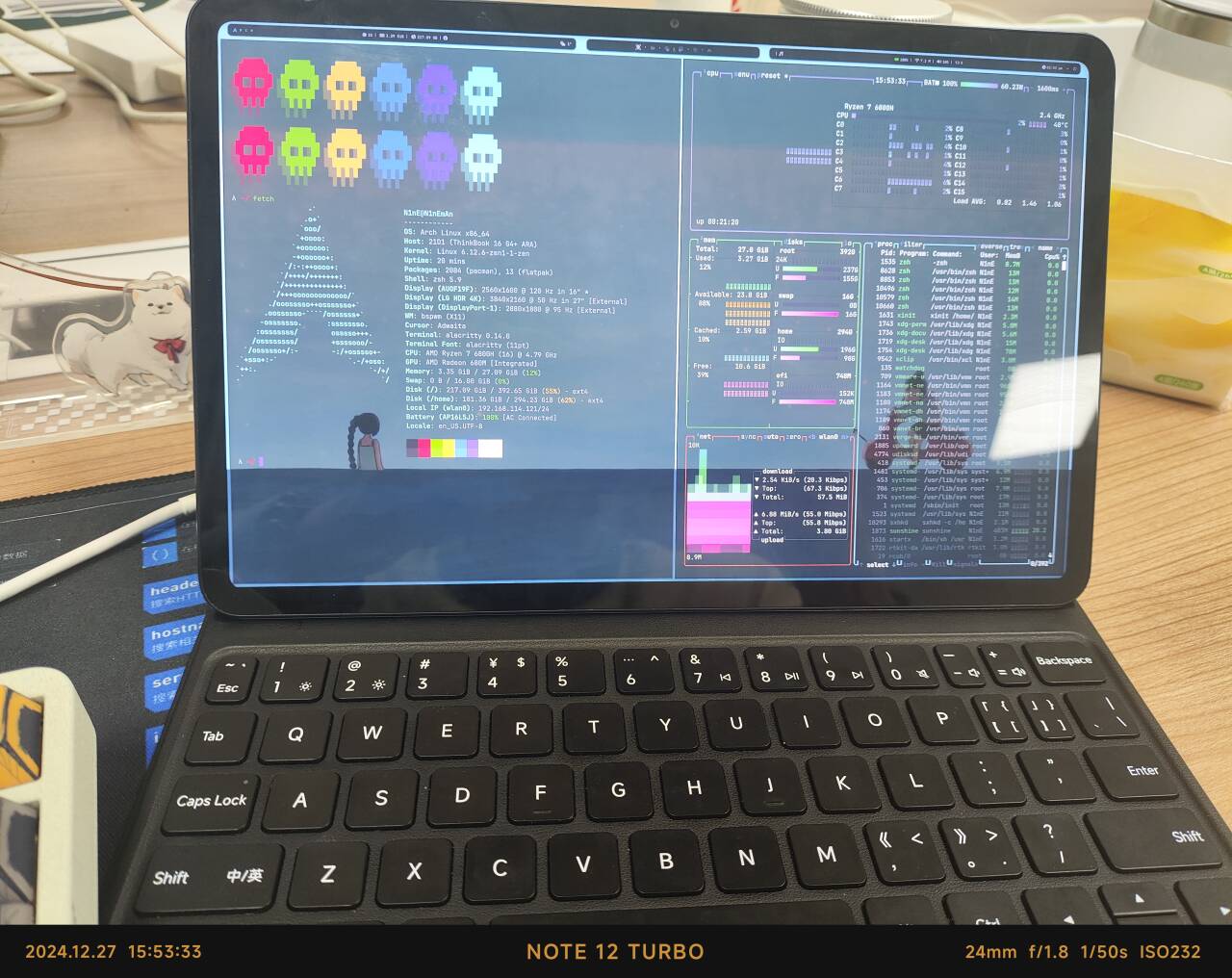
总结
通过 Sunshine 和 Moonlight,结合 xrandr 和 ARandR 工具,我们就可以直接在 Linux 下实现一套极低延迟的安卓平板副屏方案。这种方案不仅延迟极低,且分辨率和刷新率完全可控,非常适合对流畅度和画质要求较高的用户。
新增远控
注意这个方案比较吃网速或者说稳定性,所以可以用todesk做一个保底方案,除了啥问题起码有一个30fps的可以救一下。目前来说,除了校园网,基本都ok的,主要原因是校园网会有隔离,会有一些问题。不过我现在就是连接校园网在远程控制写的这个博客。good,省下来一个电脑钱,之前还纠结要不要买小电脑,现在小米平板拿捏了直接。
实际使用的时候可以根据自己的情况,适当降低码率,如果网络很好,那就忽略这一点~
VPN
接下来需要进行内网穿透达到超级好的远控效果。todesk啥的,太慢了。不过还挺简单的,直接如下
yay -S tailscaled
sudo systemctl enable --now tailscaled
 sudo tailscale up
 tailscale status
tailscale ip -4
即可获得你的ip。然后记得修改dns,这样能让延迟更低:
打开 /etc/dhcpcd.conf 文件进行编辑。您需要使用 sudo 因为这是一个系统文件:
sudo nano /etc/dhcpcd.conf
添加 nohook 指令:
在文件的末尾(或者任何一个新行),添加以下这行:
nohook resolv_conf
这行配置告诉 dhcpcd 在获取到网络信息后,不要 运行 resolv_conf 这个钩子脚本,也就是 不要 去修改 /etc/resolv.conf 文件。
重启 dhcpcd 服务:
为了让修改生效,您需要重启 dhcpcd 服务。根据您的 Linux 发行版,命令可能是:
sudo systemctl restart dhcpcd
#或者
sudo service dhcpcd restart
现在 dhcpcd 不再干扰 resolv.conf 了,我们需要确保 Tailscale 会接管 DNS 设置。通常,Tailscale 默认会尝试这样做,但为了确保万无一失,可以重启 tailscaled 并明确指定接受 DNS 设置:
sudo tailscale down
sudo tailscale up --accept-dns=true
再次运行 cat /etc/resolv.conf。如果 Tailscale 成功接管,应该会看到类似这样的内容:
# Managed by Tailscale
nameserver 100.100.100.100
search your-tailnet-name.ts.net
这样就可以享受低延迟的内网穿透~
如果sunshine密码忘了可以用如下方法重置:
sunshine --creds <新用户名> <新密码>
系统服务保证dns正确
由于我这边的dns服务一直会被换成dhcp的就算加了不让修改或者改为444也不行,所以写一个定时的脚本如下:
#!/bin/bash

# 定义要检查的 IP 地址
CHECK_IP="100.100.100.100"
# 定义 resolv.conf 文件路径
RESOLV_CONF="/etc/resolv.conf"

while true; do
  # 使用 grep -q 来安静地检查 IP 是否存在
  # 如果 IP 不存在 (grep 返回非 0 值),则执行 if 块
  if ! grep -q "$CHECK_IP" "$RESOLV_CONF"; then
    echo "$(date): $CHECK_IP 未在 $RESOLV_CONF 中找到。正在重启 Tailscale 并接受 DNS..."
    # 使用 sudo 执行 tailscale 命令
    sudo tailscale down
    sudo tailscale up --accept-dns=true
    echo "$(date): Tailscale 已重启。"
  else
    # 如果 IP 存在,则不执行任何操作 (或者可以取消注释下面的行进行记录)
    # echo "$(date): $CHECK_IP 已找到。无需操作。"
    : # bash 中的 'no-op' (无操作) 命令
  fi

  # 等待 30 秒
  sleep 120
done
然后需要root权限,我们编写服务程序/etc/systemd/system/tailscale-dns-check.service守护:
[Unit]
Description=Tailscale DNS Check and Restart Service
After=network.target tailscale.service

[Service]
ExecStart=#这里写你的脚本路径
Restart=always
User=root
StandardOutput=journal
StandardError=journal

[Install]
WantedBy=multi-user.target
然后执行如下内容进行守护即可
sudo systemctl daemon-reload
sudo systemctl start tailscale-dns-check.service
sudo systemctl status tailscale-dns-check.service
sudo systemctl enable tailscale-dns-check.service
记得查看服务是否正常启动。
新的配置
为了符合我的小米平板6pro的分辨率我们修改如下
#!/bin/sh

# 创建2560x1600_120.00模式
cvt 2560 1600 120
xrandr --newmode "2560x1600_120.00" 1053.00 2560 2768 3040 3520 1600 1603 1609 1677 -hsync +vsync
xrandr --addmode DisplayPort-1 2560x1600_120.00

# 检查是否存在3840x2160_120.00模式
if xrandr --props | grep -q "3840x2160_120.00"; then
  # 模式存在,设置所有显示器
  xrandr --output eDP --primary --mode 2560x1600 --pos 0x0 --rotate normal \
    --output HDMI-A-0 --mode 3840x2160_120.00 --pos 2560x0 --rotate normal \
    --output DisplayPort-0 --off \
    --output DisplayPort-1 --mode 2560x1600_120.00 --pos 6400x0 --rotate normal \
    --output DisplayPort-2 --off \
    --output DisplayPort-3 --off \
    --output DisplayPort-4 --off \
    --output DisplayPort-5 --off \
    --output DisplayPort-6 --off
else
  # 模式不存在,不设置HDMI-A-0显示器
  xrandr --output eDP --primary --mode 2560x1600 --pos 0x0 --rotate normal \
    --output HDMI-A-0 --off \
    --output DisplayPort-0 --off \
    --output DisplayPort-1 --mode 2560x1600_120.00 --pos 6400x0 --rotate normal \
    --output DisplayPort-2 --off \
    --output DisplayPort-3 --off \
    --output DisplayPort-4 --off \
    --output DisplayPort-5 --off \
    --output DisplayPort-6 --off
fi
连接
最后根据前面获得的ip直接连接即可。

 浙公网安备 33010602011771号