

WinForm实现管理员权限运行的方式
WinForm实现管理员权限运行的方式,有如下几种:
第一种 采用Process.Start方法
在主方法Main入口处判断当前是不是管理员权限,如果是,则不做其他处理,如果不是,改成管理员权限运行即可。
    internal static class Program
    {
        /// <summary>
        /// 应用程序的主入口点。
        /// </summary>
        [STAThread]
        static void Main()
        {
            Application.EnableVisualStyles();
            Application.SetCompatibleTextRenderingDefault(false);

            //PCHMI.SYS.RunAdmin();
            //WinForm实现管理员权限运行
            WindowsIdentity identity = WindowsIdentity.GetCurrent();
            WindowsPrincipal principal = new WindowsPrincipal(identity);
            if (principal.IsInRole(WindowsBuiltInRole.Administrator))
            {
                Application.Run(new MainForm());
            }
            else
            {
                //如果当前用户不是管理员,则重新启动程序并请求管理员权限,然后退出当前进程
                ProcessStartInfo startInfo = new ProcessStartInfo();
                startInfo.Verb = "runas"; // 以管理员身份运行
                //startInfo.FileName = Assembly.GetExecutingAssembly().Location; // 当前程序的路径
                startInfo.FileName = Application.ExecutablePath;
                startInfo.UseShellExecute = true; // 使用操作系统外壳程序启动
                //startInfo.WorkingDirectory = AppDomain.CurrentDomain.SetupInformation.ApplicationBase; // 设置工作目录
                startInfo.WorkingDirectory = Environment.CurrentDirectory; // 设置工作目录
                try
                {
                    Process.Start(startInfo);
                }
                catch
                {
                }

                //退出
                Application.Exit();
            }
        }
    }
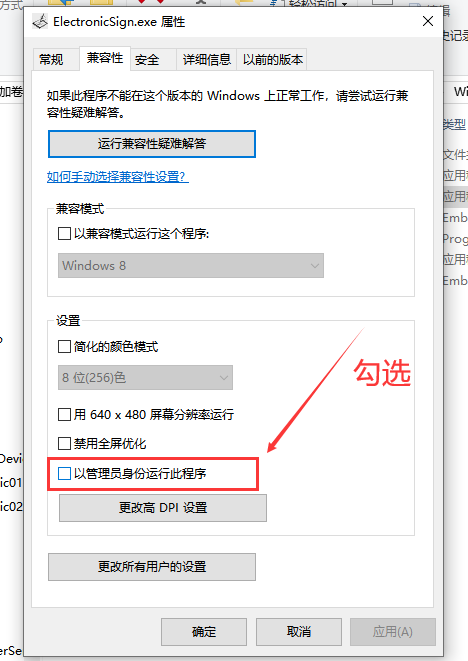
第二种 选择winfrom.exe文件,右键属性,兼容性,设置 中 勾选“以管理员身份运行此程序”选项
第三种 点击项目,右击添加,新建项,选择应用程序清单列表。添加完成后,打开app.manifest文件,修改如下:
将:
<requestedExecutionLevel level="asInvoker" uiAccess="false" />
修改为
<requestedExecutionLevel level="requireAdministrator" uiAccess="false" />
<?xml version="1.0" encoding="utf-8"?>
<assembly manifestVersion="1.0" xmlns="urn:schemas-microsoft-com:asm.v1">
  <assemblyIdentity version="1.0.0.0" name="MyApplication.app"/>
  <trustInfo xmlns="urn:schemas-microsoft-com:asm.v2">
    <security>
      <requestedPrivileges xmlns="urn:schemas-microsoft-com:asm.v3">
        <!-- UAC 清单选项
             如果想要更改 Windows 用户帐户控制级别,请使用
             以下节点之一替换 requestedExecutionLevel 节点。

        <requestedExecutionLevel  level="asInvoker" uiAccess="false" />
        <requestedExecutionLevel  level="requireAdministrator" uiAccess="false" />
        <requestedExecutionLevel  level="highestAvailable" uiAccess="false" />

            指定 requestedExecutionLevel 元素将禁用文件和注册表虚拟化。
            如果你的应用程序需要此虚拟化来实现向后兼容性,则移除此
            元素。
        -->
        <requestedExecutionLevel level="requireAdministrator" uiAccess="false" />
      </requestedPrivileges>
    </security>
  </trustInfo>

  <compatibility xmlns="urn:schemas-microsoft-com:compatibility.v1">
    <application>
      <!-- 设计此应用程序与其一起工作且已针对此应用程序进行测试的
           Windows 版本的列表。取消评论适当的元素,
           Windows 将自动选择最兼容的环境。 -->

      <!-- Windows Vista -->
      <!--<supportedOS Id="{e2011457-1546-43c5-a5fe-008deee3d3f0}" />-->

      <!-- Windows 7 -->
      <!--<supportedOS Id="{35138b9a-5d96-4fbd-8e2d-a2440225f93a}" />-->

      <!-- Windows 8 -->
      <!--<supportedOS Id="{4a2f28e3-53b9-4441-ba9c-d69d4a4a6e38}" />-->

      <!-- Windows 8.1 -->
      <!--<supportedOS Id="{1f676c76-80e1-4239-95bb-83d0f6d0da78}" />-->

      <!-- Windows 10 -->
      <!--<supportedOS Id="{8e0f7a12-bfb3-4fe8-b9a5-48fd50a15a9a}" />-->

    </application>
  </compatibility>

  <!-- 指示该应用程序可感知 DPI 且 Windows 在 DPI 较高时将不会对其进行
       自动缩放。Windows Presentation Foundation (WPF)应用程序自动感知 DPI,无需
       选择加入。选择加入此设置的 Windows 窗体应用程序(面向 .NET Framework 4.6)还应
       在其 app.config 中将 "EnableWindowsFormsHighDpiAutoResizing" 设置设置为 "true"。

       将应用程序设为感知长路径。请参阅 https://docs.microsoft.com/windows/win32/fileio/maximum-file-path-limitation -->
  <!--
  <application xmlns="urn:schemas-microsoft-com:asm.v3">
    <windowsSettings>
      <dpiAware xmlns="http://schemas.microsoft.com/SMI/2005/WindowsSettings">true</dpiAware>
      <longPathAware xmlns="http://schemas.microsoft.com/SMI/2016/WindowsSettings">true</longPathAware>
    </windowsSettings>
  </application>
  -->

  <!-- 启用 Windows 公共控件和对话框的主题(Windows XP 和更高版本) -->
  <!--
  <dependency>
    <dependentAssembly>
      <assemblyIdentity
          type="win32"
          name="Microsoft.Windows.Common-Controls"
          version="6.0.0.0"
          processorArchitecture="*"
          publicKeyToken="6595b64144ccf1df"
          language="*"
        />
    </dependentAssembly>
  </dependency>
  -->

</assembly>
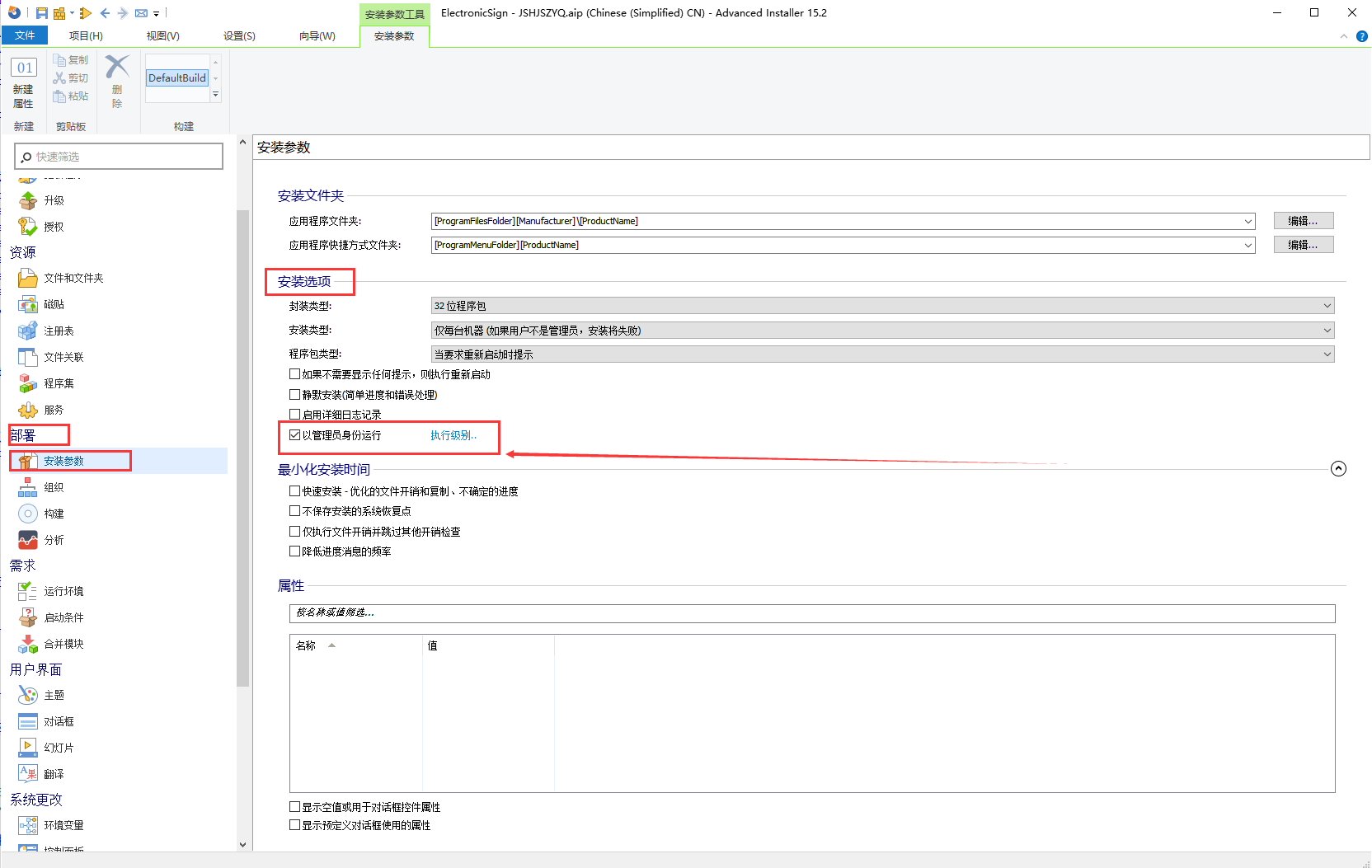
第四种 使用一些打包工具时,设置 以管理员运行即可,如:Advanced Installer Architect 15.2 Portable,在 部署 安装参数 安装选项 勾选以管理员身份运行
或者使用安装程序自动以管理员权限安装应用,如果你的应用是通过安装程序(如 MSI 或 Inno Setup)安装的,可以在安装过程中设置应用以始终以管理员权限运行。
这通常在安装程序的配置文件中设置,具体取决于你使用的安装程序工具。例如,在 Inno Setup 中,你可以使用 PrivilegesRequired 指令:
[Setup]
PrivilegesRequired=admin
龙腾一族至尊龙骑

 浙公网安备 33010602011771号