

智慧树智慧课堂思维导图导出
智慧树智慧课堂思维导图导出
智慧树作为是全球大型的学分课程运营服务平台,其智慧课堂的知识图谱却缺乏导出的功能。本文分析了其数据的导出方式,以及构建了一个js脚本完成其自动化流程。
F12分析其渲染节点,其标签为jmnodes,经过查询发现为开源思维导图库jsMind,控制台存在jsMind实例
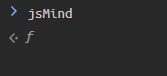
分析其加载过程中出现初始化时的jsMind Example,在源代码查询,找到相关片段:
o.format = {
        node_tree: {
            example: {
                meta: {
                    name: z,
                    author: x,
                    version: F
                },
                format: "node_tree",
                data: {
                    id: "root",
                    topic: "jsMind Example"
                }
            },
            get_mind: function(e) {
                var t = o.format.node_tree
                  , i = new o.mind;
                return i.name = e.meta.name,
                i.author = e.meta.author,
                i.version = e.meta.version,
                t._parse(i, e.data),
                i
            },
            get_data: function(e) {
                var t = o.format.node_tree
                  , i = {};
                return i.meta = {
                    name: e.name,
                    author: e.author,
                    version: e.version
                },
                i.format = "node_tree",
                i.data = t._buildnode(e.root),
                i
            },
调用jsMind.format.freemind.get_data(e).data即可获得freemind格式的元数据,分析e的构成,主要是mind格式
    o.mind = function() {
        this.name = null,
        this.author = null,
        this.version = null,
        this.root = null,
        this.selected = null,
        this.nodes = {}
    }
如何获得呢,进一步分析jsMind源代码,jsMind.current.mind存在该字段。
因此以下语句即可获得当前思维导图的元数据
jsMind.format.freemind.get_data(jsMind.current.mind).data
根据此,编写Tampermonkey脚本如下
// ==UserScript==
// @name         智慧树思维导图导出
// @icon         https://image.zhihuishu.com/zhs/b2cm/base1/202405/e8b26c2816b34620bd6dc3e5ce162ba4.png
// @namespace    http://tampermonkey.net/
// @version      1.3
// @description  自动获取 Vue Scoped CSS 标识符并添加导出按钮
// @author       Snape-max
// @match        https://smartcoursestudent.zhihuishu.com/graphFullScreen/*
// @grant        none
// ==/UserScript==

(function () {
    'use strict';

    // 等待工具箱加载并获取 Scoped CSS 标识符
    const waitForToolbox = setInterval(() => {
        const toolbox = document.querySelector('.tools-box');
        if (!toolbox) return;

        clearInterval(waitForToolbox);

        // 自动从 toolbox 或其子元素提取 data-v-* 属性
        const vueDataAttr = getScopedAttr(toolbox);
        addExportButton(toolbox, vueDataAttr);
    }, 500);

    // 从元素或其子元素中提取 data-v-* 属性名
    function getScopedAttr(element) {
        // 检查元素自身是否有 data-v-* 属性
        for (const attr of element.attributes) {
            if (attr.name.startsWith('data-v-')) {
                return attr.name;
            }
        }

        // 检查子元素(深度优先)
        const child = element.querySelector('[data-v-]');
        if (child) {
            for (const attr of child.attributes) {
                if (attr.name.startsWith('data-v-')) {
                    return attr.name;
                }
            }
        }

        // 默认返回空字符串(无 Scoped CSS)
        return '';
    }

    // 添加导出按钮(动态注入 data-v-* 属性)
    function addExportButton(toolbox, vueDataAttr) {
        // 创建按钮容器
        const buttonContainer = document.createElement('div');
        buttonContainer.className = 'tools-item-out el-tooltip__trigger el-tooltip__trigger';
        if (vueDataAttr) buttonContainer.setAttribute(vueDataAttr, '');

        // 创建按钮
        const button = document.createElement('div');
        button.className = 'tools-item';
        if (vueDataAttr) button.setAttribute(vueDataAttr, '');
        button.innerHTML = `
            <svg ${vueDataAttr} xmlns="http://www.w3.org/2000/svg" width="40" height="40" viewBox="0 0 40 40" fill="none">
                <path ${vueDataAttr} d="M20 25L15 20M20 25L25 20M20 25V15" stroke="black" stroke-width="2" stroke-linecap="round" stroke-linejoin="round"/>
                <path ${vueDataAttr} d="M30 25V30H10V25" stroke="black" stroke-width="2" stroke-linecap="round" stroke-linejoin="round"/>
            </svg>
        `;
        button.title = '导出思维导图 (.mm)';

        // 点击事件处理
        button.addEventListener('click', () => {
            if (typeof jsMind === 'undefined' || !jsMind?.format?.freemind) {
                alert('jsMind 对象未加载,请稍后再试!');
                return;
            }

            try {
                let data = jsMind.format.freemind.get_data(window.jsMind.current.mind).data;

                data = data.replace(/VALUE="(\{.*?\})"/g, (match, jsonContent) => {
                    // 替换 JSON 内部的双引号,但保留 XML 外层的双引号
                    return `VALUE="${jsonContent.replace(/"/g, "'")}"`;
                });

                const blob = new Blob([data], { type: 'application/xml' });
                const url = URL.createObjectURL(blob);
                const a = document.createElement('a');
                a.href = url;
                a.download = 'freemind_export.mm';
                document.body.appendChild(a);
                a.click();
                document.body.removeChild(a);
                URL.revokeObjectURL(url);
            } catch (e) {
                console.error('导出失败:', e);
                alert('导出失败,请查看控制台日志。');
            }
        });

        // 将按钮添加到工具箱
        buttonContainer.appendChild(button);
        toolbox.insertBefore(buttonContainer, toolbox.querySelector('.zoom-box'));
    }
})();
注意,由于https://smartcoursestudent.zhihuishu.com/
使用Vue构建,其路由由router管理,因此进入思维导图页面后需要刷新才会显示。具体界面如下
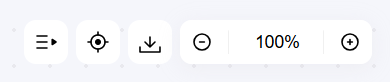
导出后的格式为FreeMind格式,可以导入幕布或者Xmind。
Time waits for no one.

 浙公网安备 33010602011771号