SharePoint的ListViewByQuery
资源地址:https://lionadi.wordpress.com/2013/03/18/resources-sharepoint-developmentprogramming-and-powershell/
针对ListViewByQuery,它的query.ListItemCollectionPosition = new SPListItemCollectionPosition(sPageInfo)无效果,当页面onload事件后,ListViewByQuery没数据时,则莫名其妙报错,而且报的是别的错。
Introduction
The ListViewByQuery control renders a list view on an application page or within a web part based on a specified query.
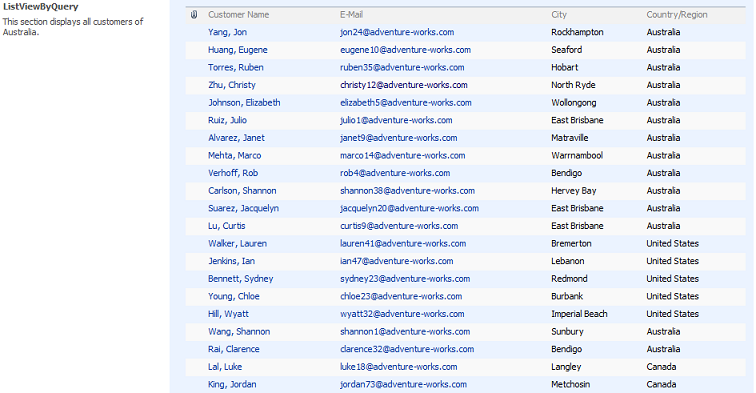
When the control is displayed users can sort on the columns of the list view and apply filters. But all these events need to be implemented by you otherwise the rendering will fail with an ugly error.
Syntax
The ListViewByQuery control is part of the Microsoft.SharePoint.dll and is located in the Microsoft.SharePoint.WebControls namespace. You can use this control declaratively when developing application pages or control templates:
<spuc:ListViewByQuery ID="CustomersListViewByQuery" runat="server" Width="700px" />
But there is a caveat: the properties List and Query only accept objects and cannot be set declaratively, only in code.
Don’t forget to add a directive at the top of the application page or control template:
<%@ Register TagPrefix="spuc" Namespace="Microsoft.SharePoint.WebControls"
             Assembly="Microsoft.SharePoint, Version=12.0.0.0, Culture=neutral, PublicKeyToken=71e9bce111e9429c" %>
If your are developing a web part you have to create the ListViewByQuery control completely in code:
private ListViewByQuery CustomersListViewByQuery;
private void EnsureChildControls()
{
     CustomersListViewByQuery = new ListViewByQuery();
     // The rest of the code follows here....
}
There are two mandatory properties that need to be set: the List property which is of type SPList and the Query property which is of type SPQuery. The OnLoad event handler or the EnsureChildControls method then contains following code:
list = SPContext.Current.Web.Lists["Customers"];
CustomersListViewByQuery.List = list;
string query = null;
if (!Page.IsPostBack)
{
    query = "<OrderBy><FieldRef Name='Title' Ascending='true' /></OrderBy>";
}
else
{
    // apply filtering and/or sorting
}
SPQuery qry = new SPQuery(list.DefaultView);
qry.Query = query;
CustomersListViewByQuery.Query = qry;
The query object must be instantiated based on an existing view of the list otherwise the ListViewByQuery control will not work. The data displayed by the control is determined by the CAML query itself.
You can limit the number of rows returned by setting the RowLimit property of the SPQuery object:
qry.RowLimit = 50;
This was the easy part but it becomes more complex when you need to implement sorting and filtering. When the user chooses to sort or to filter, the page is posted back with some extra information stored in the HttpRequest object.
Paging:
Set the Came query “RowLimit” property as page size
query.RowLimit = 5;
By doing this you can find the 1 > 5 paging icon in the control, But still it will not work. We have add little more code to make it work,
Write the code in OnLoad() or CreateChildControl()
if (!string.IsNullOrEmpty(this.Context.Request.QueryString[“Paged”]) && !string.IsNullOrEmpty(this.Context.Request.QueryString[“View”])){
string queryString = string.Empty;
foreach (string key inthis.Context.Request.QueryString.Keys){
if (key.ToLower() != “view”){
queryString += key + “=” + this.Context.Request.QueryString[key] + “&”;}
}
SPUtility.Redirect(this.Context.Request.Url.GetLeftPart(UriPartial.Path), SPRedirectFlags.Default, HttpContext.Current, queryString);
return;
}
Sorting
The user can decide to sort on a certain column by clicking the column header and choosing A on Top or Z on Top.

This instructs the page to post back, and the selected column and sort order is passed to the server stored into the Context.Request[“SortField”] and the Context.Request[“SortDir”]. Following code sample calls the BuildSortOrder method and passes both constructs the <OrderBy> clause based on both request values.
if (!Page.IsPostBack)
{
    query = "<Query><OrderBy><FieldRef Name='Title' Ascending='true' /></OrderBy></Query>";
}
else
{
    // apply filtering and/or sorting
   if (this.Context.Request != null && this.Context.Request["SortField"] != null)
   {
       string sortorder = BuildSortOrder(this.Context.Request["SortField"],
           (this.Context.Request["SortDir"] == "Asc" ? "true" : "false"));
       if (string.IsNullOrEmpty(query))
           query = sortorder;
       else
           query += sortorder;
   }
}
Following code sample constructs the <OrderBy> clause based on both request values:
private string BuildSortOrder(string fieldName, string sortOrder)
{
    string query = null;
    if (!string.IsNullOrEmpty(fieldName))
    {
        query = string.Format("<OrderBy><FieldRef Name='{0}' Ascending='{1}' /></OrderBy>", fieldName, sortOrder);
    }
    return query;
}
Filtering
The user can also filter the data in the ListViewByQuery control. When the different values in one of the columns is not a large set of data, the user can select from a list of distinct values.
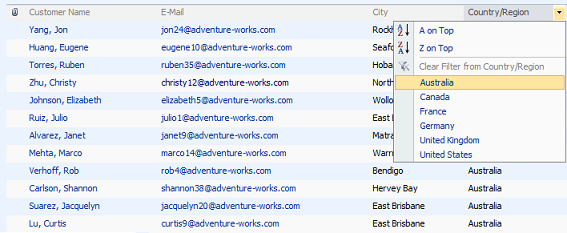
When the page is posting back after the user action, the selected field is stored in the Context.Request[“FilterField1”] and the selected value is stored in the Context.Request[“FilterValue1”]. If more than 1 filter criteria is specified by the user (by selecting a value of a second column) key/value pairs are added with FilterField2 and FilterValue2 as key, and so on.
Constructing the Where clause of a CAML query is not that easy. I give you the code sample to give you an idea on how you can proceed:
private string BuildFilter()
{
    string query = "{0}";
    bool isFound = true;
    int counter = 1;
    while (isFound)
    {
          string filterfield = "FilterField" + counter.ToString();
          string filtervalue = "FilterValue" + counter.ToString();
          if (this.Context.Request[filterfield] != null && this.Context.Request[filtervalue] != null)
          {
               // Field type must be treated differently in case of other data type
               if (counter > 1)
                   query = "<And>" + query + "{0}</And>";
               query = string.Format(query, string.Format("<Eq><FieldRef Name='{0}' /><Value Type='Text'>{1}</Value></Eq>",
                       this.Context.Request[filterfield], this.Context.Request[filtervalue]));
               counter++;
          }
          else
          {
               isFound = false;
          }
    }
    if (!string.IsNullOrEmpty(query))
       query = "<Where>" + query + "</Where>";
    return query;
}
As one of my readers pointed out, this code snippet only works for text fields. If you want to filter on other types of fields, like number fields, choice fields or lookups, you will have to change the Type attribute from the Value element into the correct type. To get hold on the field type, you will have to retrieve the field from the list.
SPField field = list.Fields[filterfield];
And change the query statement accordingly:
query = string.Format(query, string.Format("<Eq><FieldRef Name='{0}' /><Value Type='{1}'>{2}</Value></Eq>",
                       this.Context.Request[filterfield], field.TypeAsString, this.Context.Request[filtervalue]));
Grouping
With the ListViewByQuery control you can also build a view where the data is grouped. In that case you have to use the CAML GroupBy element:
query = "<GroupBy Collapse='FALSE'><FieldRef Name='CountryRegionName' /><FieldRef Name='City' /></GroupBy>";
This sample code groups the data by the CountryRegionName and then by City. You can specify more than one group by criterium but the choice of showing the groups collapsed or expanded must be set for all groups by using the Collapse attribute of the GroupBy element.
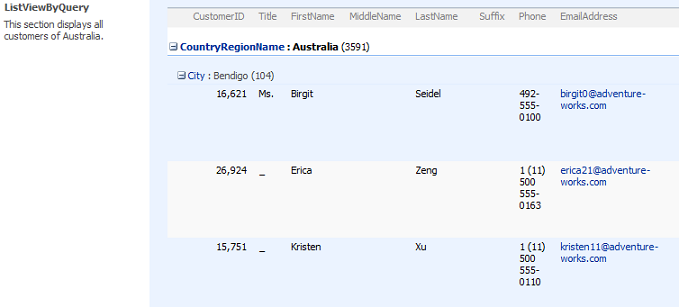
Use the + and – signs to expand and collapse the different groups.
If you decide to show the groups expanded, you set the Collapse attribute to TRUE and you get the following view:
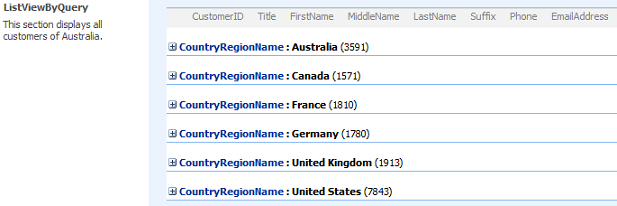
But then there is a small problem: you can expand all groups, except the latest one: it shows a Loading label but nevers shows the data.
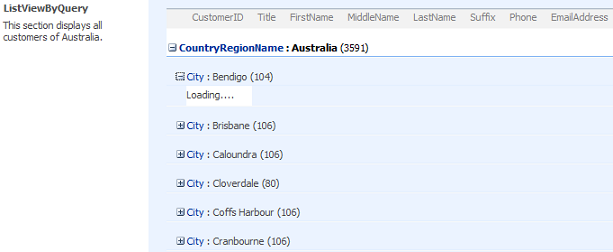
When taking a look at the rendered HTML you can see that all of the hyperlinks that have to do with the ListViewByQuery contain a call to the ExpCollGroup javascript call, which is a function in one of the javascript files that come with SharePoint.
Thanks to one of my readers, Alex, we can now solve this problem with a small piece of javascript. First set the Collapse attribute to FALSE and place your ListViewByQuery control in a DIV and give this DIV an ID. Immediately after the DIV add the following javascript:
<div id="ViewDiv" class="ms-authoringcontrols" style="width:700px">
     <spuc:ListViewByQuery ID="CustomersListViewByQuery" runat="server" Width="700px" />
</div>
<script language="javascript">
    ExpLinkFormer = function(divId)
    {
         this._DivId = divId;
         this._init();
    }
    ExpLinkFormer.prototype = {
        _init: function() {
            var div = document.getElementById(this._DivId);
            var links = div.getElementsByTagName("a");
            for (var i = 0; i < links.length; i++) {
                if (links[i].href == "javascript:" && links[i].onclick.toString().indexOf("ExpCollGroup") > -1) {
                   //alert(links[i]);
                   links[i].click();
                }
            }
        }
    }
    var expLnk = new ExpLinkFormer('ViewDiv');
</script>
The ListViewByQuery control loads with all groups expanded but when it is rendered to the page, the click method is executed on all hyperlinks that have a call to ExpCollGroup in their href attribute.

 浙公网安备 33010602011771号