
浏览器自动全屏运行指定网址
Windows开机启动项文件夹(命令行输入以下指令)
explorer shell:startup        #当前登录账户启动项
explorer shell:common startup        #所有用户启动项
文件夹路径(admin换成自己的账户)
C:\Users\admin\AppData\Roaming\Microsoft\Windows\Start Menu\Programs\Startup        #admin换成自己账户名称,这里是登录账户启动项

C:\ProgramData\Microsoft\Windows\Start Menu\Programs\StartUp        #所有用户启动项
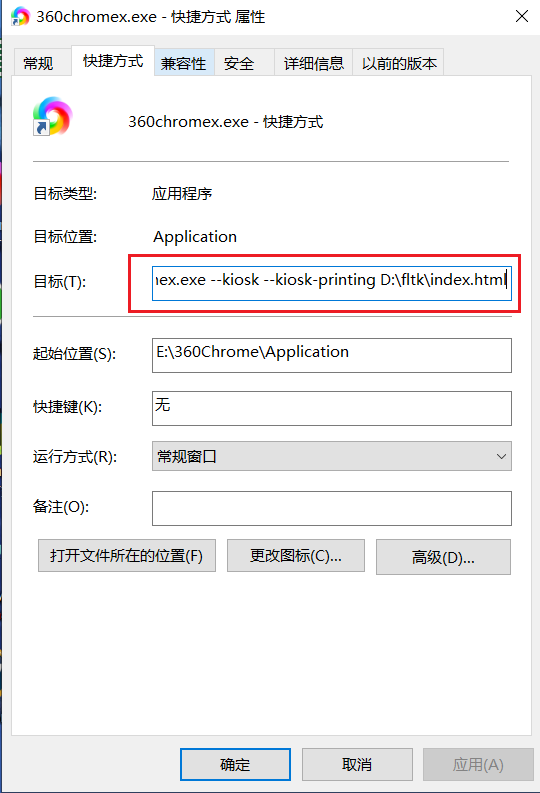
方法一:浏览器属性添加 --kiosk --kiosk-printing D:\fltk\index.html参数
- 一定要把这个浏览器所有的进程kill掉
- 双击打开这个修改的浏览器快捷方式
- 浏览器中按F11和ESC键也无法退出全屏,只能通过任务管理器结束浏览器进程
方法二:HTML+js代码,需要手动点击触发事件
<!DOCTYPE html>
<html>
    <head>
        <meta charset="utf-8">
        <title></title>
    </head>
    <body>
        <input id="Button1" type="button" value="开始全屏" onclick="kaishi()" />
        <input id="Button2" type="button" value="关闭全屏" onclick="guanbi()" />
        <script>
            function kaishi() {

                var docElm = document.documentElement;
                //W3C
                if (docElm.requestFullscreen) {
                    docElm.requestFullscreen();
                }
                //FireFox
                else if (docElm.mozRequestFullScreen) {
                    docElm.mozRequestFullScreen();
                }
                //Chrome等
                else if (docElm.webkitRequestFullScreen) {
                    docElm.webkitRequestFullScreen();
                }
                //IE11
                else if (elem.msRequestFullscreen) {
                    elem.msRequestFullscreen();
                }
            }

            function guanbi() {


                if (document.exitFullscreen) {
                    document.exitFullscreen();
                } else if (document.mozCancelFullScreen) {
                    document.mozCancelFullScreen();
                } else if (document.webkitCancelFullScreen) {
                    document.webkitCancelFullScreen();
                } else if (document.msExitFullscreen) {
                    document.msExitFullscreen();
                }
            }

            document.addEventListener("fullscreenchange", function() {

                fullscreenState.innerHTML = (document.fullscreen) ? "" : "not ";
            }, false);

            document.addEventListener("mozfullscreenchange", function() {

                fullscreenState.innerHTML = (document.mozFullScreen) ? "" : "not ";
            }, false);

            document.addEventListener("webkitfullscreenchange", function() {

                fullscreenState.innerHTML = (document.webkitIsFullScreen) ? "" : "not ";
            }, false);

            document.addEventListener("msfullscreenchange", function() {

                fullscreenState.innerHTML = (document.msFullscreenElement) ? "" : "not ";
            }, false);
        </script>
    </body>
</html>
方法三:使用浏览器插件实现
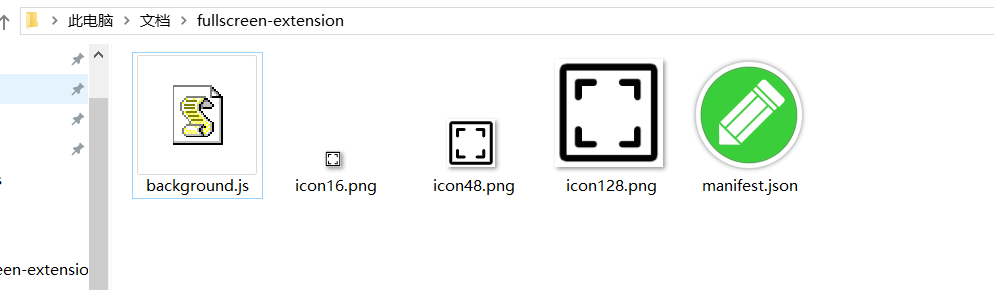
1、新建一个名为 fullscreen-extension 的文件夹,在该目录中创建 manifest.json 和 background.js 两个文件
manifest.json 文件内容
{
  "name": "Fullscreen Extension",
  "version": "1.0",
  "manifest_version": 3,
  "description": "Automatically full screen for specific websites.",
  "icons": {
    "16": "icon16.png",
    "48": "icon48.png",
    "128": "icon128.png"
  },
  "background": {
    "service_worker": "background.js"
  },
  "permissions": [
    "tabs"
  ],
  "host_permissions": [
    "https://xiykj.github.io/*"
  ]
}
background.js 文件内容,如果想要打开某个网址自动全屏,直接在这里添加地址
chrome.tabs.onUpdated.addListener((tabId, changeInfo, tab) => {
  if (changeInfo.status === "complete" && tab.url.includes("file:///D:/fltk/index.html")) {
    chrome.windows.update(tab.windowId, {state: "fullscreen"});
  }
  if (changeInfo.status === "complete" && tab.url.includes("https://www.cnblogs.com")) {
    chrome.windows.update(tab.windowId, {state: "fullscreen"});
  }
  if (changeInfo.status === "complete" && tab.url.includes("https://www.js-xiaonuo.com:666")) {
    chrome.windows.update(tab.windowId, {state: "fullscreen"});
  }
  if (changeInfo.status === "complete" && tab.url.includes("http://192.168.1.1")) {
    chrome.windows.update(tab.windowId, {state: "fullscreen"});
  }
  if (changeInfo.status === "complete" && tab.url.includes("https://www.qq.com")) {
    chrome.windows.update(tab.windowId, {state: "fullscreen"});
  }
});
2、在fullscreen-extension文件夹中添加三个图标文件,icon16.png、icon48.png和icon128.png
3、浏览器进入扩展程序页面,点击加载已解压的扩展程序按钮,选择 fullscreen-extension 文件夹,加载扩展程序
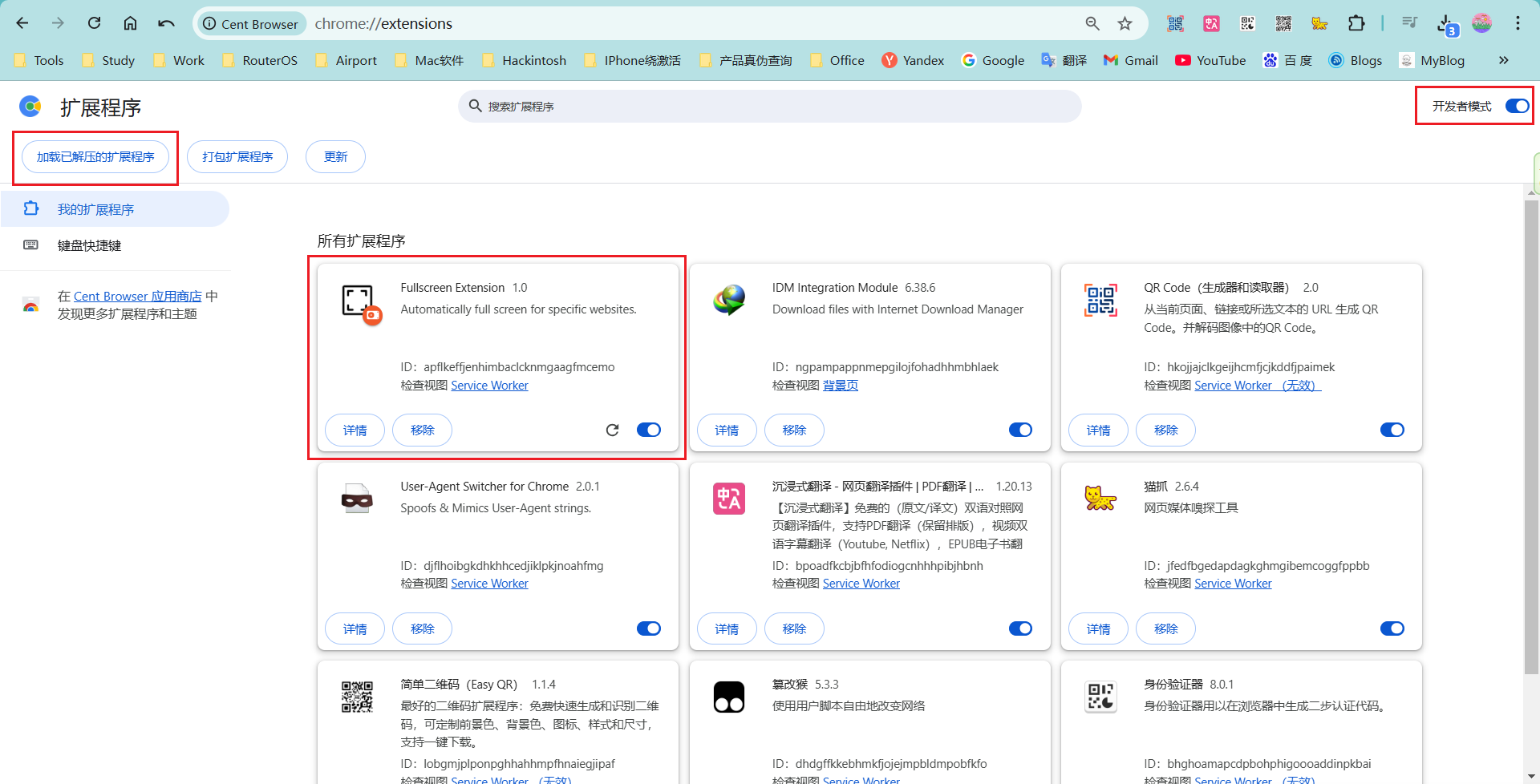
4、如果需要修改全屏显示的网址,需要在 background.js 文件中添加后,浏览器再执行卸载重新安装插件
以上文章参考:https://blog.csdn.net/qq_48759409/article/details/130087096

 浙公网安备 33010602011771号