



前端电子签名
记录一下电子签名旋转并合并图片的是实现过程
昨天产品提了个需求,在操作流程上需要添加上用户签名,并且添加到图片上对应的位置.
下面说一下自己思路:
首先想到的就是canvas,因为之前的程序中已经使用过,所以签名很好搞,
首先是样式 html
    <view class="signa">
        <view class="btn">
            <view class="cancel-btn" @click="clear">重写</view>

            <view class="save-btn" @click="save">保存</view>

            <view class="cancel-bth" @click="colse">关闭</view>
        </view>
        <canvas class="canvas" disable-scroll="true" :style="{ width: width + 'px', height: height + 'px' }" canvas-id="designature" @touchstart="starts" @touchmove="moves" @touchend="end"></canvas>

    </view>
css样式:此样式采用全屏暂时,需要的执行修改里面的height以及三个标签对应的margin-top
.signa {
    position: relative;
    overflow: hidden;
    background-color: #f1efef;
    height: 96vh;
    width: 100vw;
    .canvas {
        background-color: #ffffff;
        position: absolute;
        z-index: 9999;
        left: 50px;
        top: 6px;
        border: 1px solid #d6d6d6;
    }

    .btn {
        height: 96vh;
        position: absolute;
        font-size: 32rpx;
        .cancel-btn {
            width: 10vh;
            border: 1rpx solid #a9a1a1;
            transform: rotate(90deg);
            color: #666;
            margin-left: -2vh;
            margin-top: 10vh;
            height: 65rpx;
            line-height: 65rpx;
            border-radius: 3px;
            text-align: center;
            justify-content: center;
        }

        .save-btn {
            margin-top: 31vh;
            margin-left: -2vh;
            transform: rotate(90deg);
            background: #007aff;
            width: 10vh;
            border-radius: 3px;
            border: 1rpx solid #007aff;
            color: #fff;
            height: 65rpx;
            line-height: 65rpx;
            text-align: center;
        }

        .cancel-bth {
            background: #de7f7f;
            text-align: center;
            color: #fff;
            width: 10vh;
            height: 65rpx;
            line-height: 65rpx;
            transform: rotate(90deg);
            margin-top: 35vh;
            border-radius: 3px;
            border: 1rpx solid #de7f7f;
            margin-left: -2vh;
        }
    }
}
接下来就是重要的js了,我采用的是uni-app进行编写的,其它的应该也差不多(这里不多说)
<script>
export default {
    components: {},
    data() {
        return {
            dom: null,
            line: [],
            radius: 0,
            width: 0,
            height: 0
        };
    },
    onLoad() {},
    computed: {},
    created() {
        uni.getSystemInfo({
            success: res => {
                this.width = res.windowWidth-60;
                console.log(this.width)
                this.height = res.windowHeight+100;
                console.log(this.height)
            }
        });
        this.dom = uni.createCanvasContext('designature', this);
    },
    onShow() {},
    methods: {
        end(e) {},
        distance(a, b) {
            let x = b.x - a.x;
            let y = b.y - a.y;
            return Math.sqrt(x * x + y * y);
        },
        // 开始
        starts(e) {
            this.line.push({
                points: [
                    {
                        time: new Date().getTime(),
                        x: e.touches[0].x,
                        y: e.touches[0].y,
                        dis: 0
                    }
                ]
            });
            let currentPoint = {
                x: e.touches[0].x,
                y: e.touches[0].y
            };
            this.currentPoint = currentPoint;
            this.drawer(this.line[this.line.length - 1]);
        },
        // 滑动
        moves(e) {
            let point = {
                x: e.touches[0].x,
                y: e.touches[0].y
            };
            (this.lastPoint = this.currentPoint), (this.currentPoint = point);
            this.line[this.line.length - 1].points.push({
                time: new Date().getTime(),
                x: e.touches[0].x,
                y: e.touches[0].y,
                dis: this.distance(this.currentPoint, this.lastPoint)
            });
            this.drawer(this.line[this.line.length - 1]);
        },
        // 书写
        drawer(item) {
            let x1,
                x2,
                y1,
                y2,
                len,
                radius,
                r,
                cx,
                cy,
                t = 0.5,
                x,
                y;
            var time = 0;
            if (item.points.length > 2) {
                let lines = item.points[item.points.length - 3];
                let line = item.points[item.points.length - 2];
                let end = item.points[item.points.length - 1];
                x = line.x;
                y = line.y;
                x1 = lines.x;
                y1 = lines.y;
                x2 = end.x;
                y2 = end.y;
                var dis = 0;
                time = line.time - lines.time + (end.time - line.time);
                dis = line.dis + lines.dis + end.dis;
                var dom = this.dom;
                var or = Math.min((time / dis) * this.linePressure + this.lineMin, this.lineMax);
                cx = (x - Math.pow(1 - t, 2) * x1 - Math.pow(t, 2) * x2) / (2 * t * (1 - t));
                cy = (y - Math.pow(1 - t, 2) * y1 - Math.pow(t, 2) * y2) / (2 * t * (1 - t));
                dom.setLineCap('round');
                dom.beginPath();
                dom.setStrokeStyle('black');
                dom.setLineWidth(5);
                dom.moveTo(x1, y1);
                dom.quadraticCurveTo(cx, cy, x2, y2);
                dom.stroke();
                dom.draw(true);
            }
        },
        // 清除
        clear() {
            this.dom.clearRect(0, 0, 1000, 1000);
            this.dom.draw();
        },
        //关闭
        colse(e) {
            this.$emit('colse', false);
        },
        // 保存图片
        save() {
            var t = this;
            uni.canvasToTempFilePath(
                {
                    canvasId: 'designature',
                    fileType: 'png',
                    quality: 1, //图片质量
                    success: function(res) {
                        t.$emit('getImg',res.tempFilePath);
                        // uni.navigateBack({
                        //     delta:1
                        // })
                    },
                    fail(e) {
                        console.log(e);
                    }
                },
                this
            );
        },
    }
};
</script>
上面就是签名的实现了.需要了直接封装成组件就好;
最后拿到的效果就是这样的:

最后保存的样式
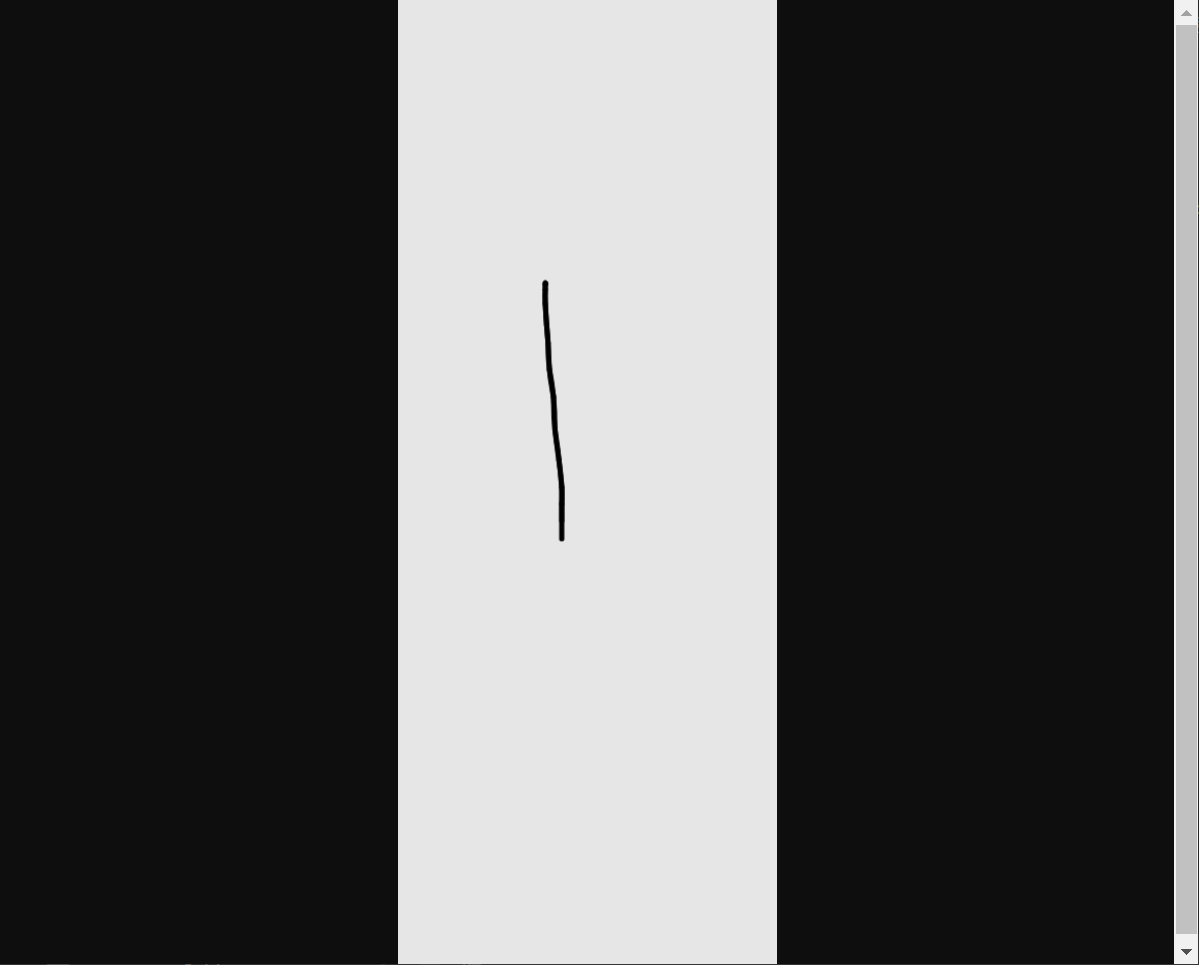
结果这样的不是产品要的结果,产品需要的是竖屏签字,横屏显示,直接原地裂开,
由于签名已经好了 懒得改,所以就产生了第二个canvas用来进行图片的旋转.上代码:
首先是html,更改后的代码如下
<view class="signa">
        <view class="btn">
            <view class="cancel-btn" @click="clear">重写</view>

            <view class="save-btn" @click="save">保存</view>

            <view class="cancel-bth" @click="colse">关闭</view>
        </view>
        <canvas class="canvas" disable-scroll="true" :style="{ width: width + 'px', height: height + 'px' }" canvas-id="designature" @touchstart="starts" @touchmove="moves" @touchend="end"></canvas>

        <canvas canvas-id="camCacnvs" :style="{ width: height + 'px', height: width + 'px' }" class="canvsborder"></canvas>
    </view>
因为图片旋转不需要用户看到,所以想到了定位到屏幕外面,添加css
    .canvsborder {
        border: 1rpx solid #333;
        position: fixed;
        top: 0;
        left: 10000rpx;
    }
接下来就是旋转保存了
        next(path) {
            console.log(8888,path)
            const that = this;
            const ctx = uni.createCanvasContext('camCacnvs', that);
            ctx.translate(that.width/2, that.height/2.5);//设置旋转点
            ctx.rotate((-90 * Math.PI) / 180);//旋转角度
            ctx.drawImage(path, 0, 0);//画图片
            ctx.draw();
            setTimeout(() => {
                uni.canvasToTempFilePath({
                        canvasId: 'camCacnvs',
                        success: function(res) {
                            var tempFilePath = res.tempFilePath;
                            console.log(6666,tempFilePath)
                            that.$emit('getImg', tempFilePath);
                        },
                        fail: err => {
                            console.log('fail', err);
                        uni.showToast({
                            title:'签名图片生成失败!',
                            duration:2000
                        })
                        uni.hideLoading()
                        }
                    },this);
            }, 200);
        }
这里就是旋转的逻辑,需要注意的一点是,上面的有个地方需要改一下,需要把save里面的t.$emit()修改为t.next(res.tempFilePath)
然后我门再试一下,结果发现图片旋转了,终于达到了要求
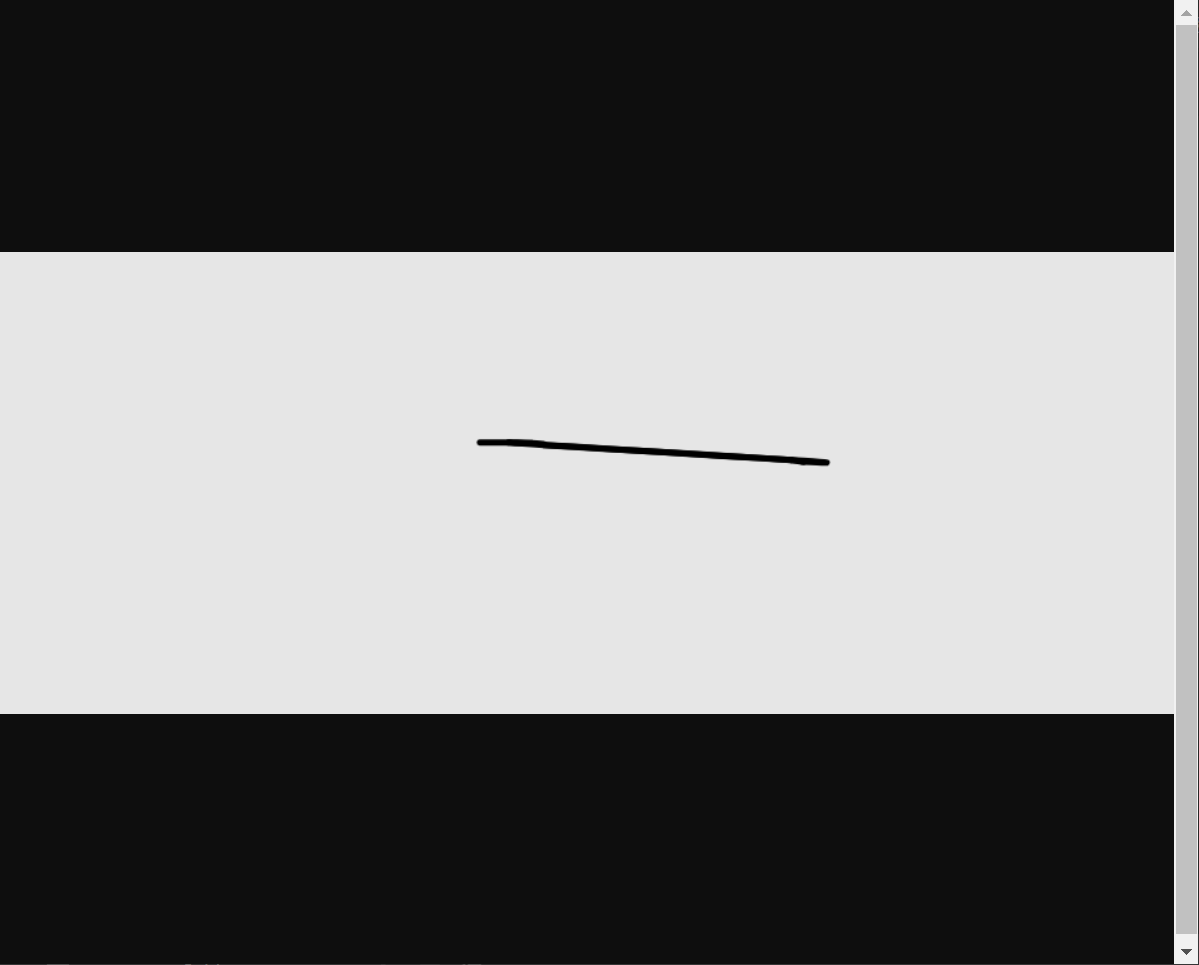
到此 签名以及旋转就结束了.
图片合并在下一篇
完整代码如下:
<template>
    <!--
        签名组件
        LYH
        横屏组件
     -->
    <view class="signa">
        <view class="btn">
            <view class="cancel-btn" @click="clear">重写</view>

            <view class="save-btn" @click="save">保存</view>

            <view class="cancel-bth" @click="colse">关闭</view>
        </view>
        <canvas class="canvas" disable-scroll="true" :style="{ width: width + 'px', height: height + 'px' }" canvas-id="designature" @touchstart="starts" @touchmove="moves" @touchend="end"></canvas>

        <canvas canvas-id="camCacnvs" :style="{ width: height + 'px', height: width + 'px' }" class="canvsborder"></canvas>
    </view>
</template>

<script>
export default {
    components: {},
    data() {
        return {
            dom: null,
            line: [],
            radius: 0,
            width: 0,
            height: 0
        };
    },
    onLoad() {},
    computed: {},
    created() {
        uni.getSystemInfo({
            success: res => {
                this.width = res.windowWidth-60;
                console.log(this.width)
                this.height = res.windowHeight+100;
                console.log(this.height)
            }
        });
        this.dom = uni.createCanvasContext('designature', this);
    },
    onShow() {},
    methods: {
        end(e) {},
        distance(a, b) {
            let x = b.x - a.x;
            let y = b.y - a.y;
            return Math.sqrt(x * x + y * y);
        },
        // 开始
        starts(e) {
            this.line.push({
                points: [
                    {
                        time: new Date().getTime(),
                        x: e.touches[0].x,
                        y: e.touches[0].y,
                        dis: 0
                    }
                ]
            });
            let currentPoint = {
                x: e.touches[0].x,
                y: e.touches[0].y
            };
            this.currentPoint = currentPoint;
            this.drawer(this.line[this.line.length - 1]);
        },
        // 滑动
        moves(e) {
            let point = {
                x: e.touches[0].x,
                y: e.touches[0].y
            };
            (this.lastPoint = this.currentPoint), (this.currentPoint = point);
            this.line[this.line.length - 1].points.push({
                time: new Date().getTime(),
                x: e.touches[0].x,
                y: e.touches[0].y,
                dis: this.distance(this.currentPoint, this.lastPoint)
            });
            this.drawer(this.line[this.line.length - 1]);
        },
        // 书写
        drawer(item) {
            let x1,
                x2,
                y1,
                y2,
                len,
                radius,
                r,
                cx,
                cy,
                t = 0.5,
                x,
                y;
            var time = 0;
            if (item.points.length > 2) {
                let lines = item.points[item.points.length - 3];
                let line = item.points[item.points.length - 2];
                let end = item.points[item.points.length - 1];
                x = line.x;
                y = line.y;
                x1 = lines.x;
                y1 = lines.y;
                x2 = end.x;
                y2 = end.y;
                var dis = 0;
                time = line.time - lines.time + (end.time - line.time);
                dis = line.dis + lines.dis + end.dis;
                var dom = this.dom;
                var or = Math.min((time / dis) * this.linePressure + this.lineMin, this.lineMax);
                cx = (x - Math.pow(1 - t, 2) * x1 - Math.pow(t, 2) * x2) / (2 * t * (1 - t));
                cy = (y - Math.pow(1 - t, 2) * y1 - Math.pow(t, 2) * y2) / (2 * t * (1 - t));
                dom.setLineCap('round');
                dom.beginPath();
                dom.setStrokeStyle('black');
                dom.setLineWidth(5);
                dom.moveTo(x1, y1);
                dom.quadraticCurveTo(cx, cy, x2, y2);
                dom.stroke();
                dom.draw(true);
            }
        },
        // 清除
        clear() {
            this.dom.clearRect(0, 0, 1000, 1000);
            this.dom.draw();
        },
        //关闭
        colse(e) {
            console.log(88888)
            this.$emit('Back');
        },
        // 保存图片
        save() {
            uni.showLoading({
                title:'图片生成中...'
            })
            var t = this;
            uni.canvasToTempFilePath(
                {
                    canvasId: 'designature',
                    fileType: 'png',
                    quality: 1, //图片质量
                    success: function(res) {
                        t.next(res.tempFilePath);
                        // uni.navigateBack({
                        //     delta:1
                        // })
                    },
                    fail(e) {
                        console.log(e);
                        uni.showToast({
                            title:'签名图片生成失败!',
                            duration:2000
                        })
                        uni.hideLoading()
                    }
                },
                this
            );
        },
        next(path) {
            console.log(8888,path)
            const that = this;
            const ctx = uni.createCanvasContext('camCacnvs', that);
            ctx.translate(that.width/2, that.height/2.5);
            ctx.rotate((-90 * Math.PI) / 180);
            ctx.drawImage(path, 0, 0);
            ctx.draw();
            setTimeout(() => {
                uni.canvasToTempFilePath({
                        canvasId: 'camCacnvs',
                        success: function(res) {
                            var tempFilePath = res.tempFilePath;
                            console.log(6666,tempFilePath)
                            that.$emit('getImg', tempFilePath);
                        },
                        fail: err => {
                            console.log('fail', err);
                        uni.showToast({
                            title:'签名图片生成失败!',
                            duration:2000
                        })
                        uni.hideLoading()
                        }
                    },this);
            }, 200);
        }
    }
};
</script>

<style scoped lang="less">
.signa {
    position: relative;
    overflow: hidden;
    background-color: #f1efef;
    height: 96vh;
    width: 100vw;
    .canvsborder {
        border: 1rpx solid #333;
        position: fixed;
        top: 0;
        left: 10000rpx;
    }
    .canvas {
        background-color: #ffffff;
        position: absolute;
        z-index: 9999;
        left: 50px;
        top: 6px;
        border: 1px solid #d6d6d6;
    }

    .btn {
        height: 96vh;
        position: absolute;
        font-size: 32rpx;
        .cancel-btn {
            width: 10vh;
            border: 1rpx solid #a9a1a1;
            transform: rotate(90deg);
            color: #666;
            margin-left: -2vh;
            margin-top: 10vh;
            height: 65rpx;
            line-height: 65rpx;
            border-radius: 3px;
            text-align: center;
            justify-content: center;
        }

        .save-btn {
            margin-top: 31vh;
            margin-left: -2vh;
            transform: rotate(90deg);
            background: #007aff;
            width: 10vh;
            border-radius: 3px;
            border: 1rpx solid #007aff;
            color: #fff;
            height: 65rpx;
            line-height: 65rpx;
            text-align: center;
        }

        .cancel-bth {
            background: #de7f7f;
            text-align: center;
            color: #fff;
            width: 10vh;
            height: 65rpx;
            line-height: 65rpx;
            transform: rotate(90deg);
            margin-top: 35vh;
            border-radius: 3px;
            border: 1rpx solid #de7f7f;
            margin-left: -2vh;
        }
    }
}
</style>
上面采用组件形式:调用如下:
<QM @getImg="getImg" @Back="Back"></QM>
import QM from "@/components/auto.vue"
        components:{
            QM
        },
            getImg(e){
        //这里是图片的临时路径  可以用来上传
                console.log(e)
            },
            Back(e){
                uni.navigateBack({
                    url:1
                })
            }
到此结束.

 浙公网安备 33010602011771号