
electron+vue——托盘图标及菜单实现
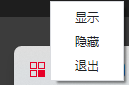
效果:
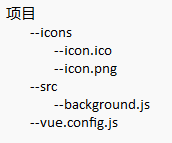
我的项目结构:
background.js:
"use strict";
import { app, BrowserWindow, Menu, Tray, nativeImage } from "electron";
import * as path from "path";
const fs = require("fs");

let mainWindow = null; // 窗口
let tray = null; // 托盘

// 获取图标路径
function getIconPath() {
  let iconPath = "";
const iconFile = process.platform === "win32" ? "icon.ico" : "icon.png"; // 图标文件名,linux下需要png格式,不然会不显示
  // 判断是否在打包模式
  if (app.isPackaged) {
    // 打包模式
    iconPath = path.join(process.resourcesPath, "icons", iconFile); // 路径根据自身情况调整
  } else {
    // 开发模式
    const projectRoot = path.join(__dirname, ".."); // __dirname 指向 dist_electron,但资源在项目根目录,所以..指向上一级
    iconPath = path.join(projectRoot, "icons", iconFile);
  }

  // 检查文件是否存在
  if (fs.existsSync(iconPath)) {
    console.log("图标文件存在:", iconPath);
    return iconPath;
  } else {
    console.error("图标文件不存在:", iconPath);
    // 返回一个默认图标路径或null
    return null;
  }
}

function createWindow() {
  // 创建浏览器窗口
  mainWindow = new BrowserWindow({
    // 其他
    icon: getIconPath(), // 本地启动图标
  });
}

// 创建系统托盘图标和菜单
function createTray() {
  // 创建图标
  const iconPath = getIconPath();
  const icon = nativeImage.createFromPath(iconPath);
  // 调整图标大小(可选)
  icon.resize({ width: 16, height: 16 });
  tray = new Tray(icon);

  // 创建上下文菜单
  const contextMenu = Menu.buildFromTemplate([
    {
      label: "显示",
      click: () => {
        mainWindow.show();
      },
    },
    {
      label: "隐藏",
      click: () => {
        mainWindow.hide();
      },
    },
    {
      label: "退出",
      click: () => {
        mainWindow.destroy();
      },
    },
  ]);

  tray.setContextMenu(contextMenu); // 设置托盘菜单
  tray.setToolTip("测试应用"); // 设置托盘图标的提示文本

  // 托盘图标右键事件(可选)
  tray.on("right-click", () => {
    tray.popUpContextMenu(); // 弹出托盘菜单
  });
}

// 主进程准备完毕
app.on("ready", async () => {
  createWindow();
  createTray();
});
vue.config.js:
const appName = "测试应用";
module.exports = {
  pluginOptions: {
    electronBuilder: {
      builderOptions: {
        artifactName: "${productName}.${ext}", // 打包生成的安装包名称,默认会有 "Setup ${version}" 后缀
        appId: `com.alpha.${appName}.app`, // 应用的唯一标识符
        productName: appName, // 应用名称
        win: {
          icon: "icons/icon.ico",
          target: [
            {
              target: "nsis",
              arch: ["x64", "ia32"], // 兼容32位
            },
          ],
        },
        linux: {
          icon: "icons/icon.png",
          target: [
            {
              target: "tar.gz",
              arch: ["x64"],
            },
          ],
          category: "Utility",
        },
        // 添加 nsis 配置避免其他错误
        nsis: {
          oneClick: false,
          perMachine: true,
          allowToChangeInstallationDirectory: true,
        },
        // 关键,确保打包后图标文件存在于运行时可访问的位置
        extraResources: [
          {
            from: "icons",
            to: "icons",
            filter: ["**/*"],
          },
        ],
      },
    },
  },
};
动态设置菜单
1.新建preload.js(与background.js同级)
import { contextBridge, ipcRenderer } from "electron";

// 安全地暴露 API 给渲染进程
contextBridge.exposeInMainWorld("desktopHandler", {
  // 动态设置托盘菜单:传入一个数组模板,返回是否设置成功
  setTrayMenu: (templateArr) =>
    ipcRenderer.invoke("set-tray-menu", templateArr),
  // 监听托盘菜单点击事件,回调参数为 {id}
  onTrayMenuClick: (callback) =>
    ipcRenderer.on("tray-menu-click", (_, data) => callback(data)),
});
2.引入preload.js
background.js中:
function createWindow() {
  // 创建浏览器窗口
  mainWindow = new BrowserWindow({
    // 其他
    webPreferences: {
      nodeIntegration: true, // 是否启用 Node.js 集成
      contextIsolation: true, // 是否启用上下文隔离,启用时,需通过preload.js安全暴露 ipcRenderer
      preload: path.join(__dirname, "preload.js"),
    },
  });
}
vue.config.js中:
module.exports = {
  pluginOptions: {
    electronBuilder: {
      // 其他
      preload: "src/preload.js"
    },
  },
};
3.动态创建菜单
background.js中:
// 将渲染进程传来的菜单模板转换为 Electron 可用的模板,并在点击时发送事件回渲染进程
function buildMenuTemplate(arr) {
  return arr.map((item) => {
    // 点击时把id发回渲染进程
    item.click = () => {
      try {
        if (mainWindow && mainWindow.webContents) {
          mainWindow.webContents.send("tray-menu-click", {
            id: item.id,
          });
        }
      } catch (e) {
        console.warn("发送 tray-menu-click 失败", e);
      }
    };

    return item;
  });
}

// 动态设置托盘菜单模板(渲染进程调用)
function setTrayMenu(arr) {
  if (!tray) {
    console.warn("托盘尚未初始化,无法设置菜单");
    return false;
  }
  try {
    const built = buildMenuTemplate(arr);
    const contextMenu = Menu.buildFromTemplate(built);
    tray.setContextMenu(contextMenu);
    return true;
  } catch (e) {
    console.error("设置托盘菜单失败", e);
    return false;
  }
}

// 创建系统托盘图标和菜单
function createTray() {
  // 创建图标
  const iconPath = getIconPath();
  const icon = nativeImage.createFromPath(iconPath);
  // 调整图标大小(可选)
  icon.resize({ width: 16, height: 16 });
  tray = new Tray(icon);
  tray.setToolTip("联通5G专网安全盾"); // 设置托盘图标的提示文本
  // 托盘图标右键事件(可选)
  tray.on("right-click", () => {
    tray.popUpContextMenu(); // 弹出托盘菜单
  });
}


// 主进程准备完毕
app.on("ready", async () => {
  // 渲染进程调用以动态更新托盘菜单
  ipcMain.handle("set-tray-menu", async (_, template) => {
    return setTrayMenu(template);
  });

  ipcMain.handle("get-tray-menu", async () => {
    // 无法直接反序列化 Menu,因此只返回一个标记表示是否存在菜单
    return { hasTray: !!tray };
  });

  createWindow();
  createTray();
});
4.App.vue或者其他组件中调用
mounted() {
    const menu = [
      { id: "show", label: "显示" },
      { id: "hide", label: "隐藏" },
      { id: "exit", label: "退出" },
    ];
    window.desktopHandler
      .setTrayMenu(menu)
      .then((result) => {
        // 设置成功
      })
      .catch((error) => {
        // 设置失败
        console.error("设置托盘菜单失败:", error);
      });
    // 设置点击事件
    window.desktopHandler.onTrayMenuClick((data) => {
      switch (data.id) {
        case "show":
          console.log('show');
          break;
        case "hide":
          console.log('hide');
          break;
        case "exit":
          console.log('exit');
          break;
        default:
          break;
      }
    });
  },

 浙公网安备 33010602011771号