


SilverLight学习笔记--Silverligh之动态加载程序集(.DLL)
一、为什么我们需要动态的加载程序集:
因为在实际开发环境中,我们编写的Xap包会越来越大,此时,我们会选择把某些功能独立的部件(例如:一个计算器引擎、一段加密方法甚至一个用户界面)放置到一个程序集中,然后在需要的时候动态去加载这个程序集,并允许用户使用封装于其中的独立部件或功能,并与宿主界面进行交互。
二、如何实现
在这里,我们将以动态加载一个自定义的用户界面来学习如何实现动态地加裁程序集。
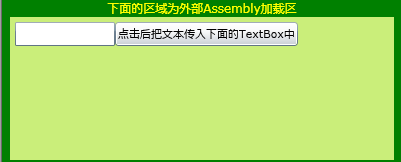
当我们点击"动态加载编辑器(Editor)"按钮后,程序就会动态地加裁我们的"编辑器程序集",它是我们编写的一个用户UI,其界面如下:
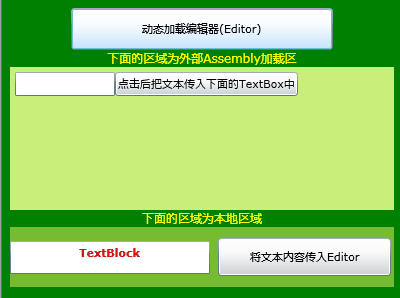
加载后的界面如下:
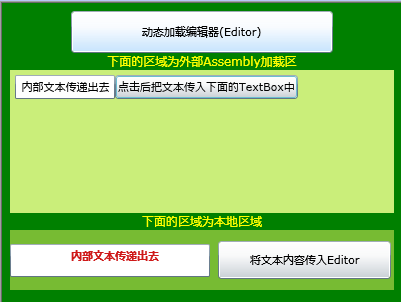
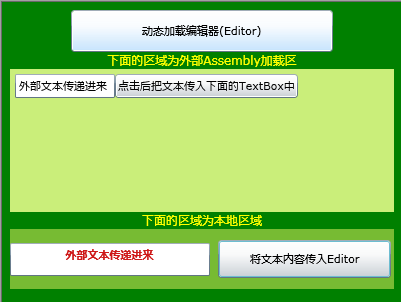
然后,我们可以在用户编辑器中输入文本,并把输入的文本传递到下面的外部文本框。也可以在下面的外部文本框中输入文本,然后把输入内容传递到动态加载的用户编辑器中,效果如图:
1、编写需要动态加载的程序集
为方便起见,这个工作可以放到我们现在所处的解决方案中来实施。我们要编写一个用户编辑器,这个编辑器很简单,它由一个TextBox和一个Button组成。
它的实现步骤分为两步:一是定义接口。二是定义编辑器类
1.1、定义接口
点击解决方案,跳出右键菜单,选择"添加"--"新建项目"--"Silverlight类库",命名为: Interfaces。如图:
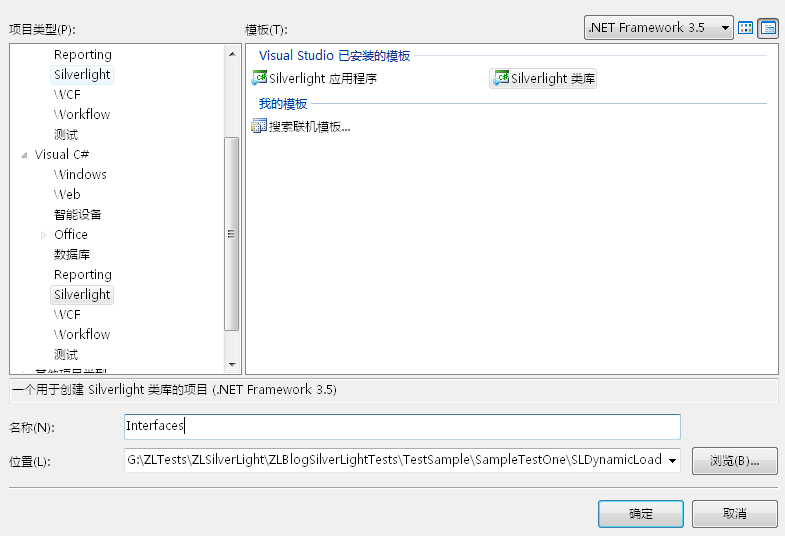
编辑Interfaces下的Class1.cs,在此我们建立了一个自定义 TextEventArgs 事件参数类和一个接口类,名为IEditUI。
代码如下 :
 using System;using System.Net;using System.Windows;using System.Windows.Controls;using System.Windows.Documents;using System.Windows.Ink;using System.Windows.Input;using System.Windows.Media;using System.Windows.Media.Animation;using System.Windows.Shapes;namespace Interfaces
 {
{

 自定义 TextEventArgs 事件参数类
 定义一个接口IEditUI
 }
} 1.2、定义用户编辑器类
用与定义接口同样的方法,我们添加一个Silverlight类库项目,命名为:Implementation。新建后,解决方案如下图:
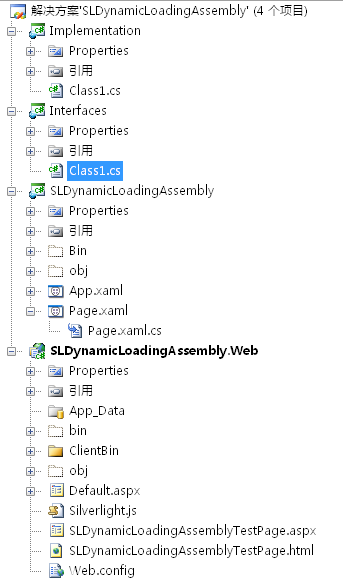
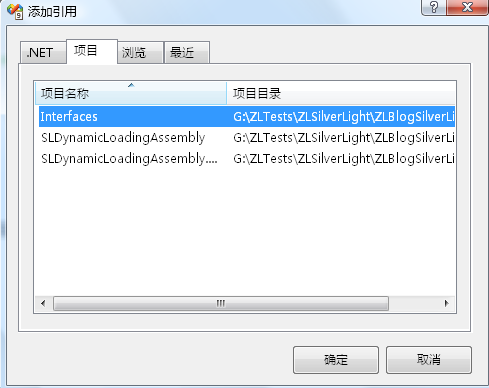
在编写Implementation类的代码前,我们需要添加引用前面所定义的Interfaces接口,引用界面如图:
Implementation项目下的Class1.cs代码如下:
using System;using System.Net;using System.Windows;using System.Windows.Controls;using System.Windows.Documents;using System.Windows.Ink;using System.Windows.Input;using System.Windows.Media;using System.Windows.Media.Animation;using System.Windows.Shapes;using Interfaces; //需要引用Interfaces接口namespace Implementation{ //在此我们定义Editor类,它必须要实现我们前面定义的IEditUI接口 public class MyEditor: IEditUI { private TextBox textBox; private TextBlock textBlock; 定义并实现IEditUI接口的TextChanged事件 MyEditor的构造函数 实现IEditUI接口的GetControls方法 MyEditor界面中按钮Click事件,在此事件中激发IEditUI接口定义的TextChanged事件 实现IEditUI接口的SetText方法
 }}
}}
1.3、进一步准备工作
现在我们需要生成解决方案,生成后,我们需要找到Implementation项目的Bin目录下的Debug子目录,在此子目录下找到Implementation.dll,把它拷贝到 SLDynamicLoadingAssembly.Web项目的ClientBin下备用(引用)。如下图:
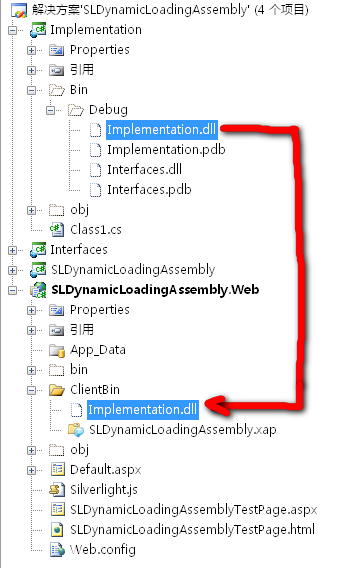
2、编写Host界面
2.1、定义SLDynamicLoadingAssembly程序界面
编辑SLDynamicLoadingAssembly项目下的Page.xaml,内容如下:
<UserControl x:Class="SLDynamicLoadingAssembly.Page" xmlns="http://schemas.microsoft.com/winfx/2006/xaml/presentation" xmlns:x="http://schemas.microsoft.com/winfx/2006/xaml" Width="400" Height="300" Background="Blue" > <Grid x:Name="LayoutRoot" Background="Green" > <StackPanel Margin="8,8,8,8"> <Button x:Name="btnLoadEditor" Height="42" Width="262" Content="动态加载编辑器(Editor)" Background="#FF108CF7" Click="btnLoadEditor_Click"/> <TextBlock Text="下面的区域为外部Assembly加载区" FontSize="12" Foreground="Yellow" TextAlignment="Center"></TextBlock> <StackPanel x:Name="hostGrid" Height="143" Width="385" RenderTransformOrigin="0.5,0.5" Background="#FFCAEE7A"> <StackPanel.RenderTransform> <TransformGroup> <ScaleTransform/> <SkewTransform/> <RotateTransform Angle="0.002"/> <TranslateTransform/> </TransformGroup> </StackPanel.RenderTransform> </StackPanel> <TextBlock Text="下面的区域为本地区域" Foreground="Yellow" FontSize="12" TextAlignment="Center"></TextBlock> <StackPanel Height="60" Width="386" Background="#FF77BB33" Orientation="Horizontal"> <TextBox x:Name="txtHost" Height="33" Width="200" Text="TextBlock" TextWrapping="Wrap" Foreground="#FFCF1919" Opacity="0.99" HorizontalAlignment="Center" FontWeight="Bold" FontFamily="Portable User Interface" TextAlignment="Center" /> <Button x:Name="btnOuterTextBox" Height="38" Width="173" HorizontalAlignment="Right" Margin="8" Content="将文本内容传入Editor" Click="btnOuterTextBox_Click" /> </StackPanel> </StackPanel> </Grid></UserControl>在此我们创建了用户界面。
2.2、引用前面创建的用户界面程序集:Implementation.dll
Page.xaml.cs代码如下:
using System;using System.Collections.Generic;using System.Linq;using System.Net;using System.Windows;using System.Windows.Controls;using System.Windows.Documents;using System.Windows.Input;using System.Windows.Media;using System.Windows.Media.Animation;using System.Windows.Shapes;using System.Reflection; //因为要用到Assembly,所以引入此空间using Interfaces; namespace SLDynamicLoadingAssembly{ public partial class Page : UserControl { IEditUI editor; //先声明一个全局 IEditUI public Page() { InitializeComponent(); } 点击"动态加载编辑器(Editor)"按钮后加载程序集"Implementation.dll" 传递编辑器中的文本到外部TextBox中显示 把外部TextBox中的值传递到递编辑器中的TextBox }} 至此,重新生成解决方案并运行即可看到前面的运行效果。
(转载本文请注明出处)

 浙公网安备 33010602011771号