

软工导论第一次作业-2048小程序修改
| 博客班级 | https://edu.cnblogs.com/campus/zjcsxy/SE2020 |
| 作业要求 | https://edu.cnblogs.com/campus/zjcsxy/SE2020/homework/11334 |
| 作业目标 |
编写一个小程序,可以全新编写,也可以学习别人的小程序进行修改;熟悉git代码管理流程,将源代码上传到github;在博客园班级中写一篇相应的博文 |
| 作业源代码 | https://github.com/hhh11505/miniprogram-2048 |
| 学号姓名 | 31801098徐晓翠 |
前言
这是第一次接触小程序开发方面的内容,之前也没有接触过JavaScript语言,可以说是从零开始完成这次作业。现在微信小程序可以说层出不穷,要找到相关的学习资料并不困难。我觉得从零开始在这几周的时间内自己完成一个小程序的开发不太现实,所以我选择在github上下载了一个2048小游戏的源码并在此基础上进行修改,在此附上源码地址:https://github.com/windlany/wechat-weapp-2048
原来的2048小程序只有游戏界面,如下图所示:
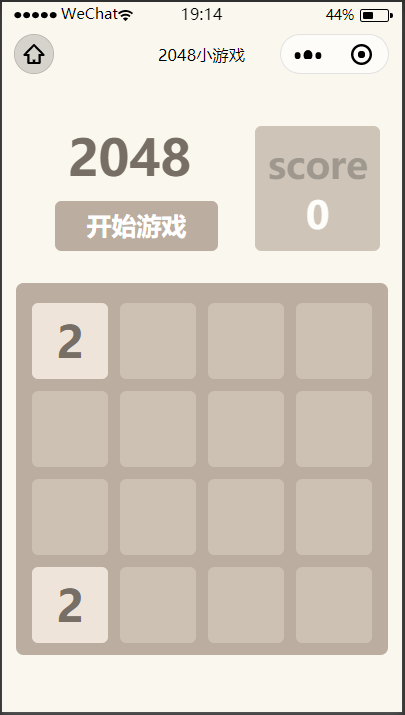
我做出的修改主要是添加了用户授权、游戏首页和用户个人页。小程序运行的录屏如链接中所示:https://weibo.com/7334515558/Jq6rHyzAR
-
文件结构
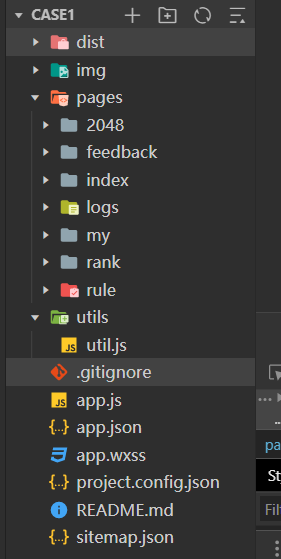
如图所示:
dist文件夹中是自定义组件的内容;
img文件夹存放小程序用到的图片素材;
pages文件夹存放页面的内容;
util存放用户数据;
其他为基础配置文件。
-
页面跳转控制
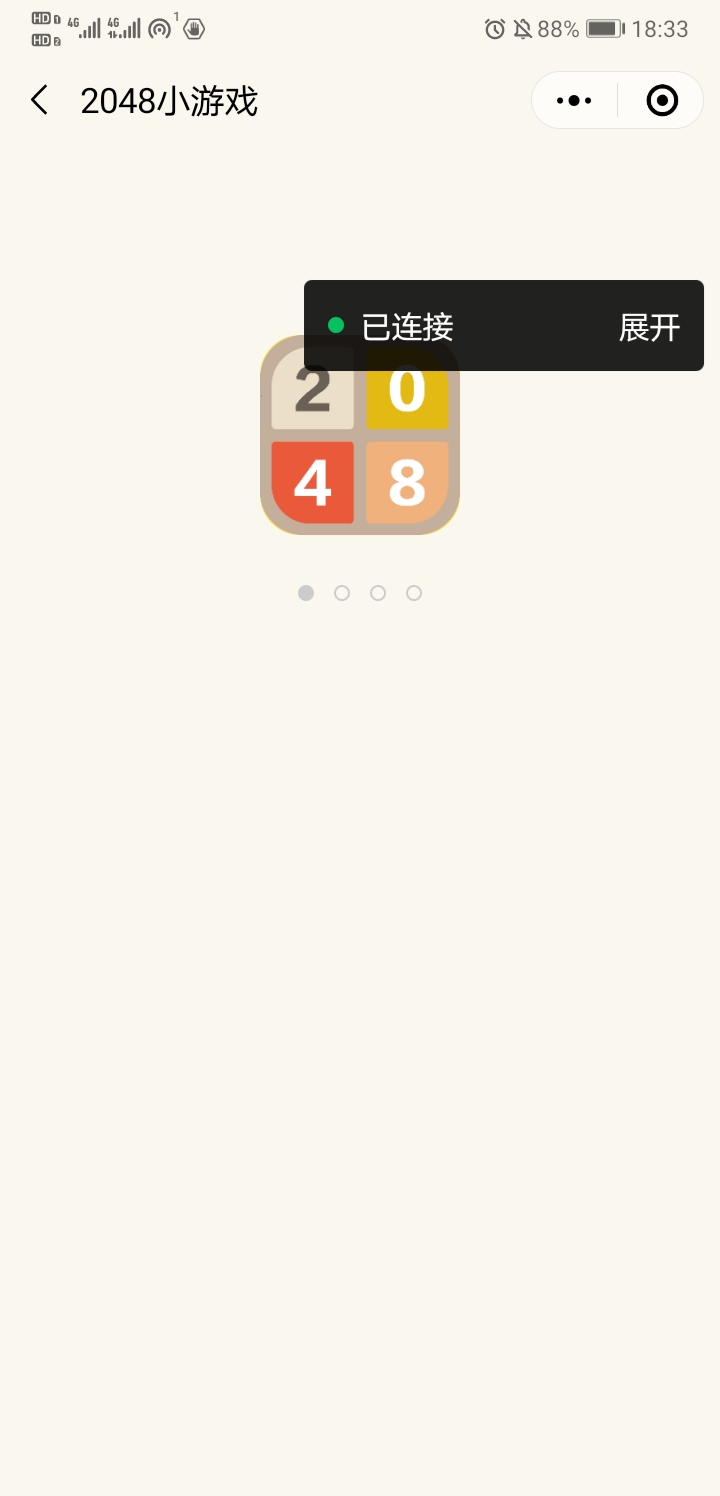
整个小程序主要由7个页面构成:logs下授权登录页,index下小程序加载页,rule下小程序主页即规则页,2048下游戏页,rank下排行页,my下个人信息页,feedback下反馈页。
运行情况是在logs页判断用户是否授权登录后进入小程序加载页index/index,随后进入游戏首页rule/index,通过设置tabBar来控制3个主页的跳转。页面下排的tabBar在选中是会显示彩色,未被选中时呈现灰色。
 1 "pages": [
 2     "pages/logs/logs",
 3     "pages/index/index",
 4     "pages/rule/index",
 5
 6     "pages/2048/2048",
 7
 8     "pages/rank/index",
 9
10     "pages/my/index",
11     "pages/feedback/index"
12   ],
13   "window": {
14     "backgroundTextStyle": "light",
15     "navigationBarBackgroundColor": "#faf8ee",
16     "navigationBarTitleText": "2048小游戏",
17     "navigationBarTextStyle": "black",
18     "backgroundColor": "#FFB6C1"
19   },
20   "tabBar": {
21     "selectedColor": "#2db7f5",
22     "color": "#909090",
23     "list": [
24       {
25         "text": "规则",
26         "iconPath": "img/2048rule1.jpg",
27         "selectedIconPath": "img/2048rule.jpg",
28         "pagePath": "pages/rule/index"
29
30       },
31       {
32         "text": "新游戏",
33         "iconPath": "img/newgame.jpg",
34         "selectedIconPath": "img/newgame-select.jpg",
35         "pagePath": "pages/2048/2048"
36       },
37       {
38         "text": "我的",
39         "iconPath": "img/my.png",
40         "selectedIconPath": "img/my-select.png",
41         "pagePath": "pages/my/index"
42       }
43     ]
44   },
-
授权
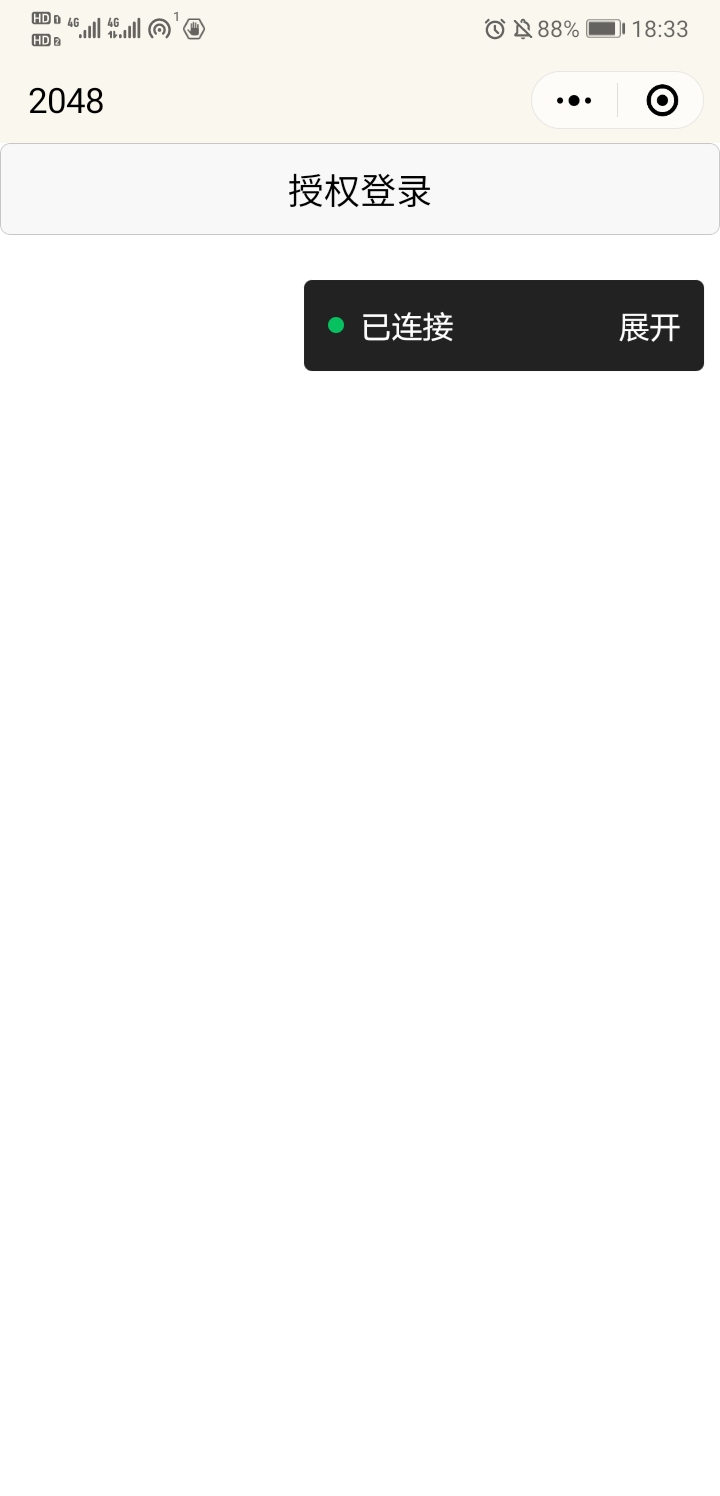
在app.js调用登录接口,获取登录数据;在logs.js中写判断是否用户授权,若没有授权过需要点击按钮授权跳转到小程序加载页;反之将会自动进入小程序加载页。
 1 //app.js
 2 App({
 3   onLaunch: function () {
 4     //调用API从本地缓存中获取数据
 5     var logs = wx.getStorageSync('logs') || []
 6     logs.unshift(Date.now())
 7     wx.setStorageSync('logs', logs)
 8   },
 9   getUserInfo:function(cb){
10     var that = this
11     if(this.globalData.userInfo){
12       typeof cb == "function" && cb(this.globalData.userInfo)
13     }else{
14       //调用登录接口
15       wx.login({
16         success: function () {
17           wx.getUserInfo({
18             success: function (res) {
19               that.globalData.userInfo = res.userInfo
20               typeof cb == "function" && cb(that.globalData.userInfo)
21             }
22           })
23         }
24       })
25     }
26   },
27   globalData:{
28     userInfo:null
29   }
30
31
32 })
 1 //logs.js
 2 const util = require('../../utils/util.js')
 3
 4 Page({
 5   data: {
 6      //判断小程序的API,回调,参数,组件等是否在当前版本可用。
 7     canIUse: wx.canIUse('button.open-type.getUserInfo')
 8   },
 9   onLoad: function() {
10     // 查看是否授权
11     wx.getSetting({
12       success: function(res){
13         if (res.authSetting['scope.userInfo']) {
14           wx.getUserInfo({
15             success: function(res) {
16               console.log(res.userInfo)
17               //用户已经授权过
18               wx.navigateTo({
19                 url: '../../pages/index/index',
20               })
21             }
22           })
23         }
24       }
25     })
26   },
27   bindGetUserInfo: function(e) {
28     console.log(e.detail.userInfo)
29     if (e.detail.userInfo){
30       //用户按了允许授权按钮
31       wx.navigateTo({
32         url: '../../pages/index/index',
33       })
34     } else {
35       //用户按了拒绝按钮
36     }
37   }
38 })
1 <!--logs.wxml-->
2 <button
3     wx:if="{{canIUse}}"
4     open-type="getUserInfo"
5     bindgetuserinfo="bindGetUserInfo"
6 >授权登录</button>
7 <view wx:else>请升级微信版本</view>
-
游戏首页
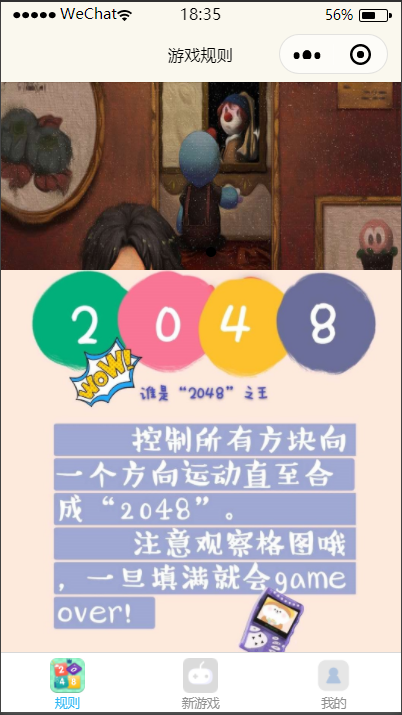
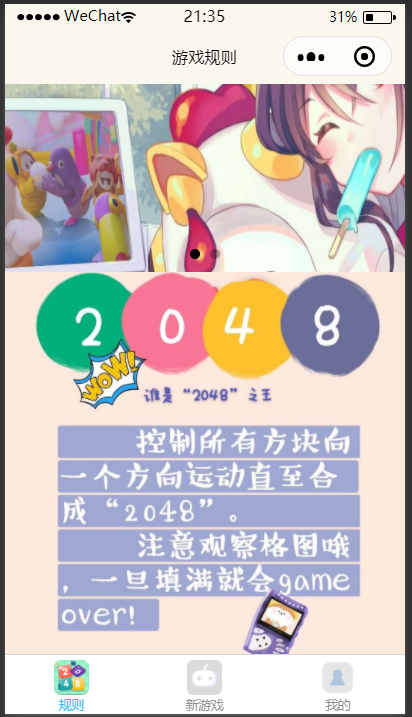
首页上半部分是滚动图片,可以用作广告位。下半部分是规则,考虑到美观性以及规则无需触发事件等原因采用图片形式呈现,在p图软件做成规则图直接插入。
 1 // pages/rule/index.js
 2     data: {
 3       indicatorDots:true,
 4       autoplay:true,
 5       duration:1000,
 6      interval:2000,
 7      imgUrls:[
 8        '../../img/s3.jpg',     //滚动图片s3,s2
 9        '../../img/s2.jpg'
10      ],
11      imgUrls1:[
12       '../../img/rule.jpg'     //规则图片
13      ]
14     }
-
用户个人页
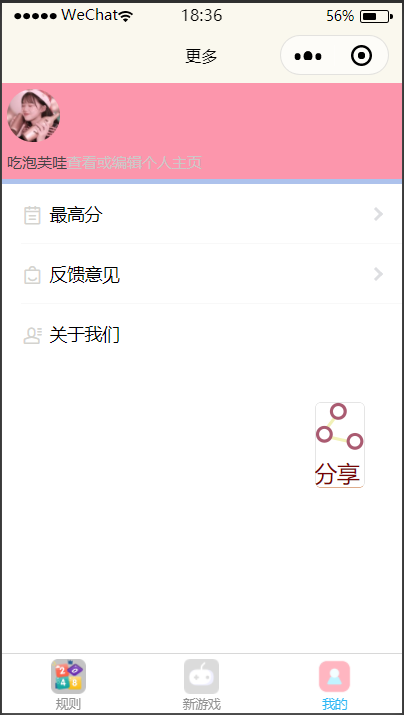
在index.wxml中是这一页面的排版,header是用户头像个人信息部分,蓝色的色条是bg-line分隔线,随后是i-cell-group,引入自定义组件来显示其他内容,分享按钮独立在页面右侧。
 1 <!--pages/my/index.wxml-->
 2 <view class="header">
 3   <view class="user flex-wrp">
 4     <view class="avatar flex-item">
 5       <image class="userinfo-avatar" src="{{userInfo.avatarUrl}}" background-size="cover"></image>
 6     </view>
 7     <view class="user-info flex-item">
 8       <text class="userinfo-nickname" >{{userInfo.nickName}}</text>
 9       <text class="edit" >查看或编辑个人主页</text>
10     </view>
11
12   </view>
13
14 </view>
15 <view class="bg-line"></view>
16 <i-cell-group>
17   <i-cell title="最高分" is-link url="/pages/rank/index">
18     <i-icon type="activity" color="#d4d3cf" slot="icon" size='18' />
19   </i-cell>
20   <i-cell title="反馈意见" is-link url="/pages/feedback/index">
21     <i-icon type="service" color="#d4d3cf" slot="icon" size='18' />
22   </i-cell>
23   <i-cell title="关于我们" bind:click="about">
24     <i-icon type="addressbook" color="#d4d3cf" slot="icon" size='18'/>
25   </i-cell>
26 </i-cell-group>
27 <i-col span="24" i-class="sh">
28       <view class="" style="float:right;margin-top:0px;color:#dddddd">
29         <button class="button-text" open-type="share">
30           <image src="/img/share.png" mode="aspectFit" style="height: 40px;width:40px;"></image>
31           <view>分享</view>
32         </button>
33       </view>
34     </i-col>
-
反馈意见
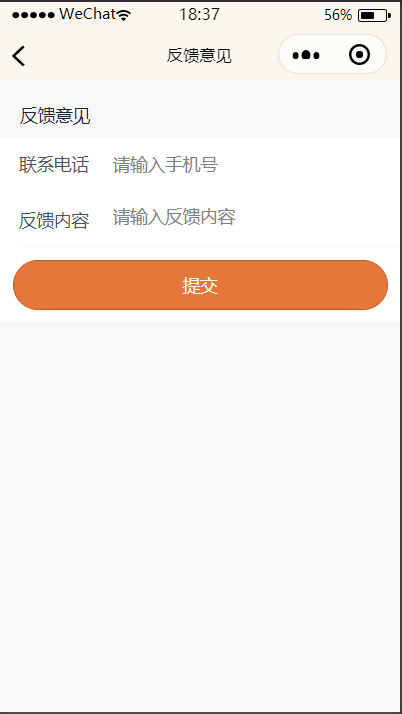
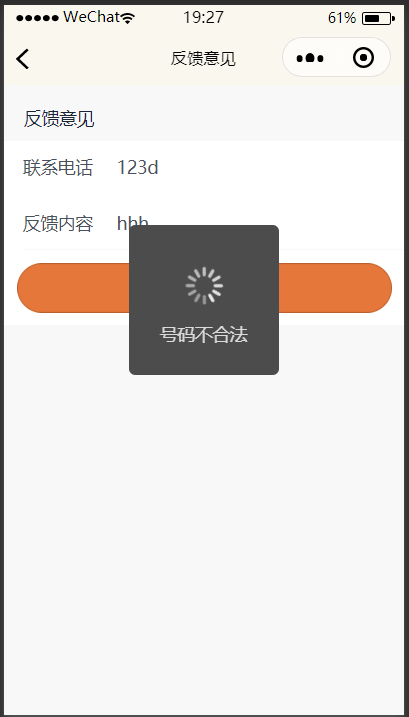
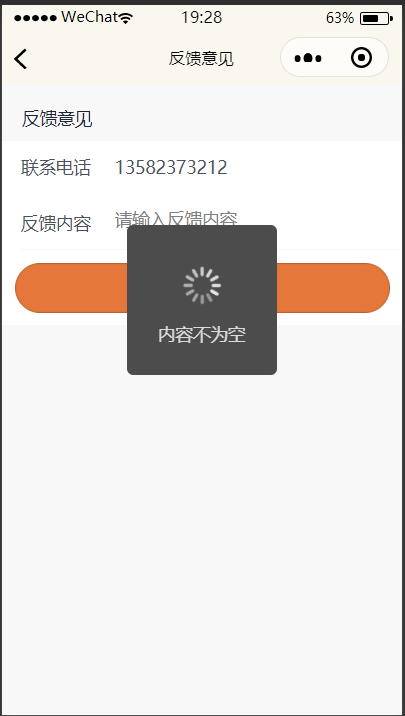
在feedback下index.js中的formSubmit函数如下图所示,用户在反馈意见页填写联系电话和反馈内容,为了使信息可靠,可以通过这个函数来判断用户手机号码是否合法以及反馈内容不能为空。考虑到交互性,当用户输入的号码不合法或反馈内容为空时会跳出提示信息。只有用户的联系方式合法并且反馈内容不为空时提示提交成功。
 1 formSubmit(e) {
 2     var phoneNum = this.data.value1;
 3     var content = this.data.value2;
 4     var reg = /^1[3|4|5|7|8][0-9]\d{8}$/;
 5     if (reg.test(phoneNum) === false) {
 6       wx.showToast({
 7         title: '号码不合法',
 8         icon: 'loading',
 9         duration: 1500
10       });
11       return false;
12     }
13     if(content == ''){
14       wx.showToast({
15         title: '内容不为空',
16         icon: 'loading',
17         duration: 1500
18       });
19       return false;
20     }
21     wx.u.addFeedBack(phoneNum,content).then(res=>{
22       if (res.result == 'success'){
23         wx.showToast({
24           title: '提交成功',
25           success: function () {
26             setTimeout(function () {
27               //要延时执行的代码
28               wx.switchTab({
29                 url: '../my/index'
30               })
31             }, 1500)
32           }
33         });
34
35       }else{
36         wx.showToast({
37           title: '提交失败',
38           icon: 'loading',
39           duration: 1500
40         });
41         return false;
42       }
43     })
44   }
-
关于我们
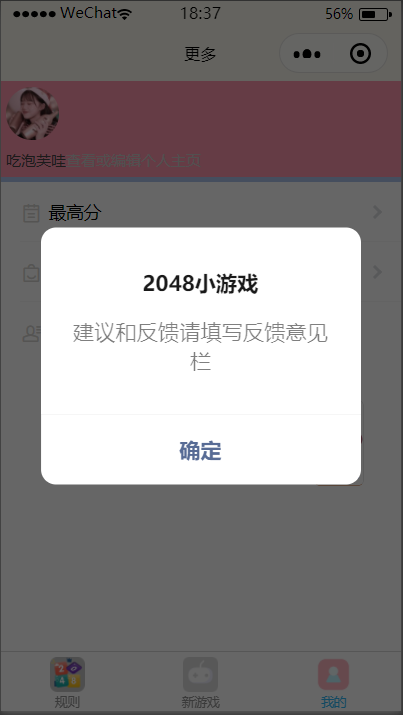
这个页面的内容可以通过修改下图代码中的content来呈现不同内容,比如开发日期和联系方式或者推广信息等。
1 about() {
2     wx.showModal({
3       title: '2048小游戏',
4       content: '建议和反馈请填写反馈意见栏',
5       showCancel: false
6     })
7   }
-
分享
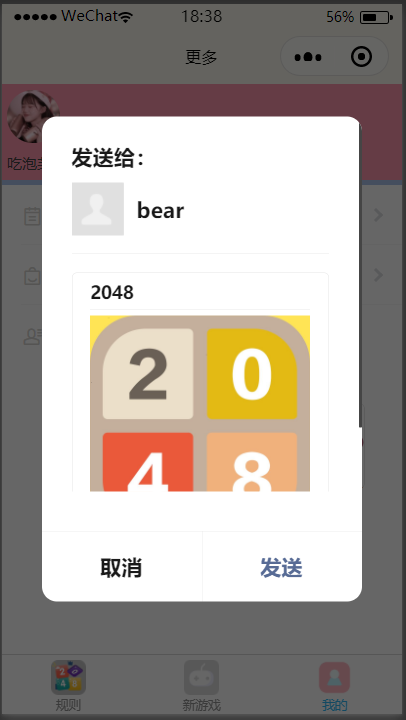
 1 //index.js
 2 onShareAppMessage(){
 3     return {
 4       title: '2048',
 5       path: '/pages/index/index',
 6       imageUrl:'/img/logo.png'
 7     }
 8   }
 9
10 //index.wxml
11 <i-col span="24" i-class="sh">
12       <view class="" style="float:right;margin-top:0px;color:#dddddd">
13         <button class="button-text" open-type="share">
14           <image src="/img/share.png" mode="aspectFit" style="height: 40px;width:40px;"></image>
15           <view>分享</view>
16         </button>
17       </view>
18     </i-col>
-
2048游戏页
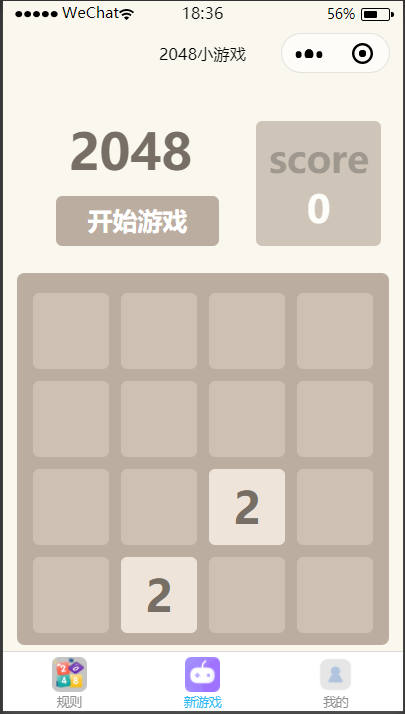
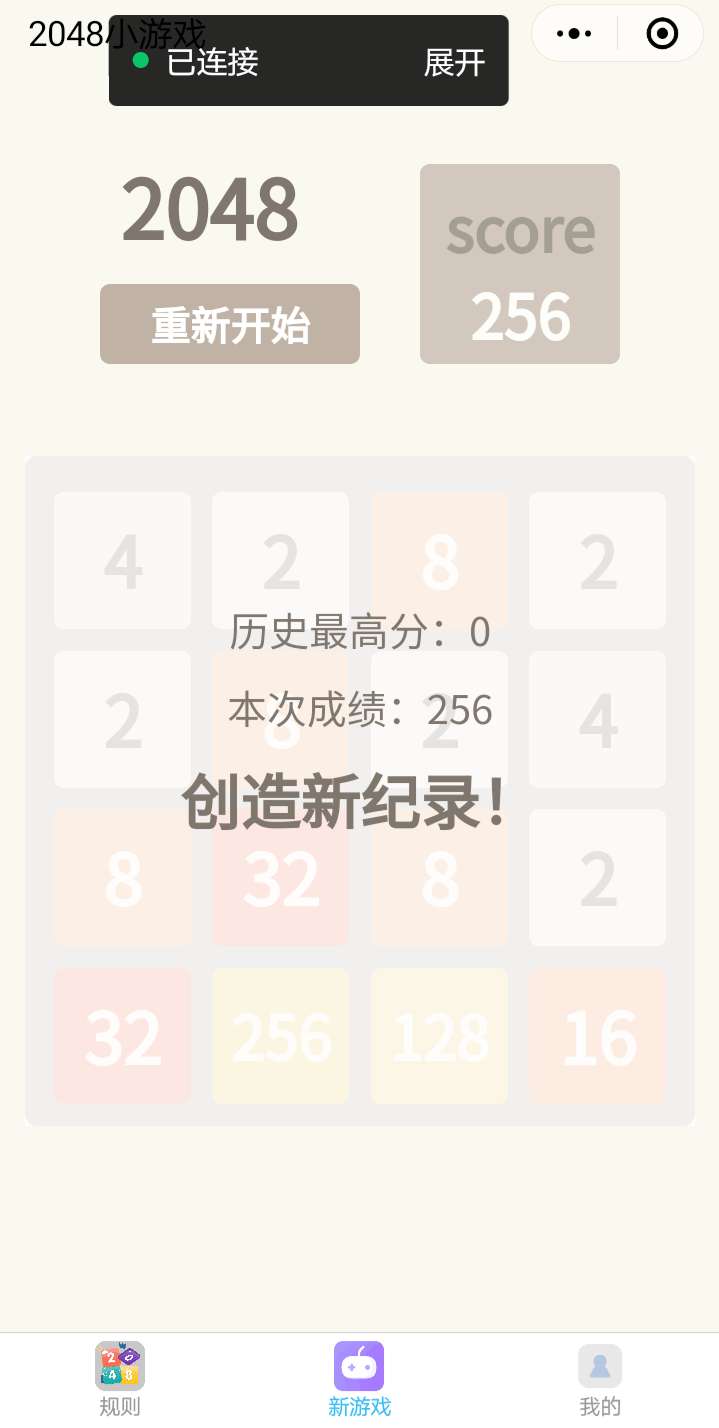
这部分的代码实现是在github上下载的,对其中的设计没有作什么大的修改。以下是这一部分的算法解析(整理自原作者):该程序主要难度在用户滑动屏幕时值相同的cell合并
-
总结与感悟
这几周在微信开发者工具上开发小程序的经历极大地丰富了我计算机学习的经验路程。从下载安装微信开发者工具到现在完成这样一个修改版的2048小游戏,于己可以说是学会了很多,从完全看不太懂这些代码和文件夹内容到能磕磕撞撞完成这样一个作业。一开始的准备活动就是在github上查找适合自己的小程序,2048覆盖面比较广,而且原作者的这一版只写了游戏页,感觉能修改的东西比较多。准备好代码材料后花了比较长一段时间去看懂这些代码和学习javaScript的编写,还需要搜索相关图标,修改颜色等。在这一过程中,甚至学会了photoshop的相关知识。在界面样式设计这一过程中也花了比较多的时间,调整按钮以及列表的大小和页面大小相吻合以及颜色需要一遍一遍看效果。最初打算的排版和最后的效果不太一样,整个过程都是尝试和重写并行,就花的时间比较多。第一次写小程序,遇到的困难很多,但是方法总比困难多,慢慢都会有所成果和收获。

 浙公网安备 33010602011771号