
Enterprise Library 2.0 Hands On Lab 翻译(4):日志应用程序块(一)
练习1:添加日志记录到应用程序中
该练习将示范如何向已有的应用程序中添加日志和监测(Trace姑且这么翻译吧,不太准确),并通过Enterprise Library Configuration工具来配置TraceListeners。
第一步
打开EnoughPI.sln项目,默认的安装路径应该为C:\Program Files\Microsoft Enterprise Library January 2006\labs\cs\Logging\exercises\ex01\begin,并编译。
第二步 关于练习应用程序
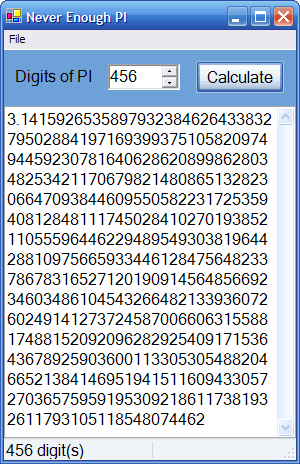
选择Debug | Start Without Debugging菜单命令并运行应用程序,EnoughPI程序用来计算∏的精度。在NumericUpDown控件中输入你希望的精度并点击Calculate按钮。
第三步 添加日志
1.选择EnoughPI项目,选择Project | Add Reference …菜单命令,在打开的对话框中选择Browse,并添加如下程序集。

Microsoft.Practices.EnterpriseLibrary.Logging.dll;
默认的位置应该是C:\Program Files\Microsoft Enterprise Library January 2006\bin。
2.在解决方案管理器中选择Calc\Calculator.cs文件,选择View | Code菜单命令,并添加如下命名空间。
 using Microsoft.Practices.EnterpriseLibrary.Logging;
3.记录计算完成时的信息在Calculator.cs文件的OnCalculated方法中添加如下代码。
protected void OnCalculated(CalculatedEventArgs args) {
{

 // TODO: Log final result LogEntry log = new LogEntry(); log.Message = string.Format("Calculated PI to {0} digits", args.Digits); log.Categories.Add(Category.General); log.Priority = Priority.Normal; Logger.Write(log); if (Calculated != null) Calculated(this, args);
 }
}创建了一个新的日志项LogEntry并设置参数,使用Logger类的静态方法Write()记录到一个或多个TraceListener。注意这里没有使用硬编码而使用常量的Category和Priority,在EnoughPI.Logging的Constants.cs中作了如下定义:
public struct Priority{ public const int Lowest = 0; public const int Low = 1; public const int Normal = 2; public const int High = 3; public const int Highest = 4;}public struct Category{ public const string General = "General"; public const string Trace = "Trace";}4.记录计算过程的信息在OnCalculated方法中添加如下代码。
protected void OnCalculating(CalculatingEventArgs args){ // TODO: Log progress Logger.Write( string.Format("Calculating next 9 digits from {0}", args.StartingAt), Category.General, Priority.Low ); if (Calculating != null) Calculating(this, args); if (args.Cancel == true) {
{ // TODO: Log cancellation Logger.Write("Calculation cancelled by user!", Category.General, Priority.High);
 }}
}}注意这里使用Logger类的重载Write方法来快捷的创建了一个日志项LogEntry。
5.记录计算过程的异常信息,添加如下代码到OnCalculatorException方法中。
protected void OnCalculatorException(CalculatorExceptionEventArgs args){ // TODO: Log exception if (!(args.Exception is ConfigurationErrorsException)) { Logger.Write(args.Exception, Category.General, Priority.High); } if (CalculatorException != null) CalculatorException(this, args);}注意这里必须测试异常不能是ConfigurationErrorsException,否则你将无法使用日志记录。对于异常信息的处理通常将会创建一个Enterprise Library 异常应用程序块来处理异常,这在后面的练习中将会看到。
第四步 使用企业库配置工具
1.使用Enterprise Library配置工具配置应用程序,可以通过开始菜单打开该配置工具,选择所有程序| Microsoft patterns and practices | Enterprise Library | Enterprise Library Configuration,并打开App.config文件。或者直接在Visual Studio中使用该工具打开配置文件。
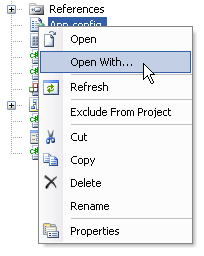
2.在解决方案管理器中选中App.config文件,在View菜单或者在右键菜单中选择Open With…,将打开OpenWith对话框,单击Add按钮。
3.在Add Program对话框中,设置Program name指向EntLibConfig.exe文件,默认的路径为C:\Program Files\Microsoft Enterprise Library January 2006\bin,设置Friendly name为Enterprise Library Configuration,单击OK按钮。
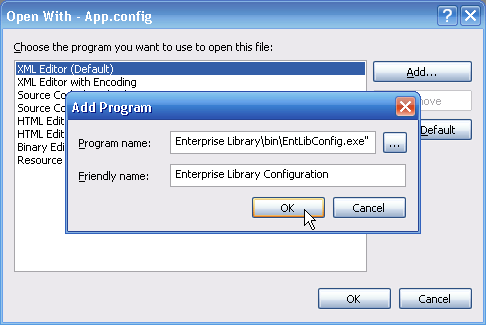
Visual Studio会把配置文件(App.config)作为一个命令行参数传递给EntLibConfig.exe。
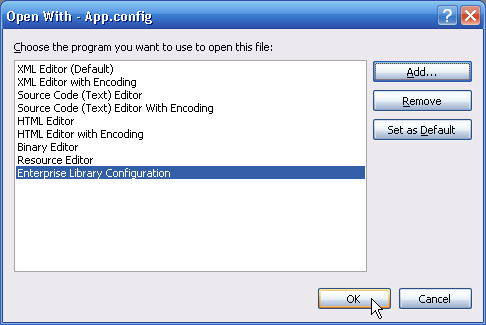
4.在Open With对话框中,选中Enterprise Library Configuration并单击OK按钮。
第五步 配置应用程序
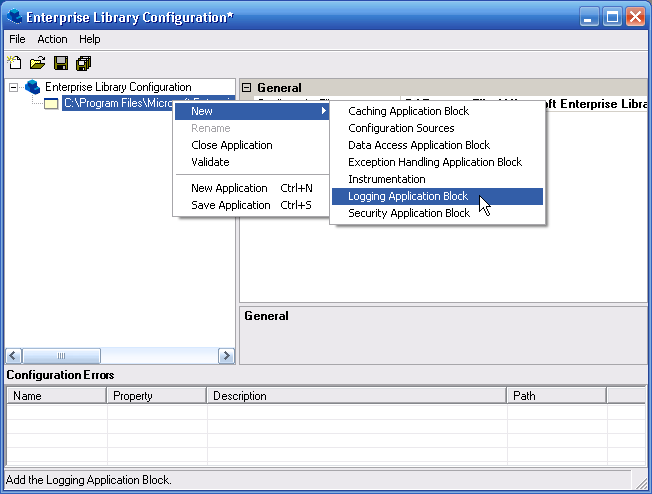
1.在应用程序上右击并选择New | Logging Application Block
2.默认的日志应用程序块定义了一个名为General的Category,Categories是一组简单的文本标签,你可以提交日志信息到一组这样的Category。General类别有一个名为Formatted EventLog TraceListener的TraceListener。要添加一个新的Category,在Category Sources上右击,选择New | Category。一个Category可以有多个TraceListener,而一个TraceListener也可以被多个Category所引用。

注意Category其实是日志信息的一种逻辑分类,可以把要记录的日志信息分为界面日志,异常日志,数据访问日志等,至于具体记录到什么位置,则是由TraceListener来决定的。
3.选择Logging Application Block | Trace Listeners | Formatted EventLog TraceListener节点,设置Source属性为EnoughPI。
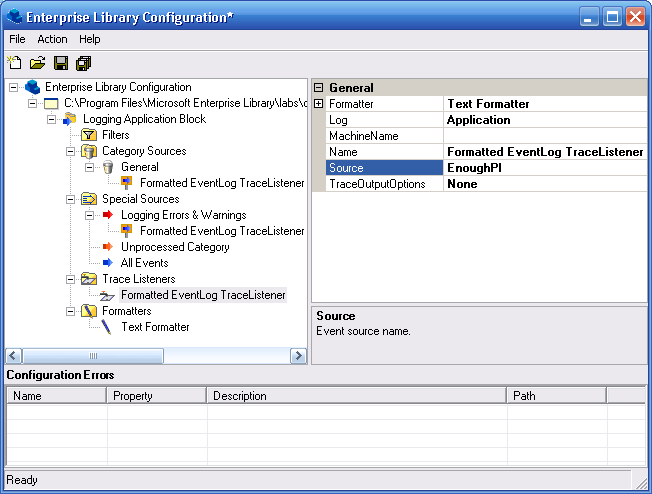
注意该TraceListener将使用Text Formatter来格式化日志信息,并且记录日志信息到Windows Event Log中。
4.选择菜单File | Save All保存应用程序的配置,并关闭Enterprise Library Configuration工具。
第六步 运行应用程序
1.选择Debug | Start Without Debugging菜单命令并运行应用程序,在NumericUpDown控件中输入精度并点击Calculate按钮。
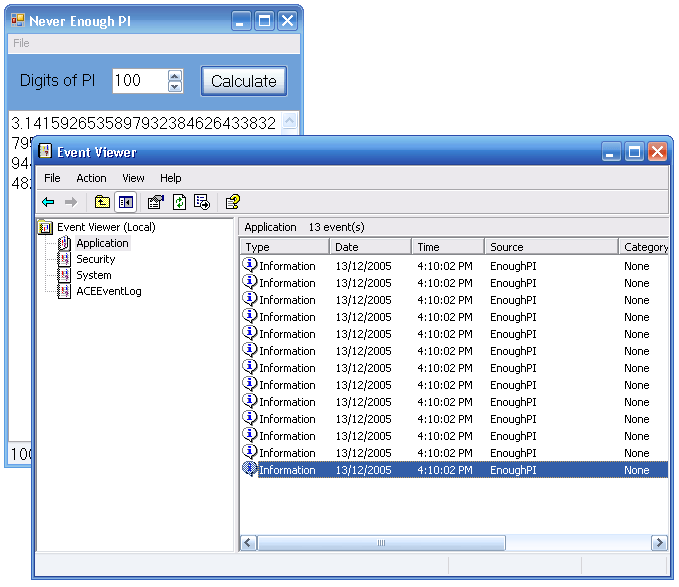
2.打开事件查看器。通过开始 | 管理工具 | 时间查看器,查看应用程序记录的日志信息。
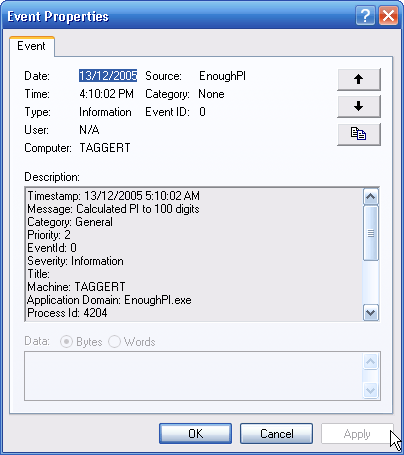
3.双击一条日志项查看详细的信息。
4.退出应用程序
第七步 添加监测(Tracing)
1.我们经常需要监测应用程序在一个时间区的情况,日志应用程序块为我们提供了Tracing的功能。
2.在解决方案管理器中选择Calc\Calculator.cs文件,选择View | Code菜单命令,在方法Calculate中添加如下代码。
public string Calculate(int digits){ StringBuilder pi = new StringBuilder("3", digits + 2); string result = null; try { if (digits > 0) { // TODO: Add Tracing around the calculation using (new Tracer(Category.Trace)) { pi.Append("."); for (int i = 0; i < digits; i += 9) { CalculatingEventArgs args; args = new CalculatingEventArgs(pi.ToString(), i + 1); OnCalculating(args); // Break out if cancelled if (args.Cancel == true) break; // Calculate next 9 digits int nineDigits = NineDigitsOfPi.StartingAt(i + 1); int digitCount = Math.Min(digits - i, 9); string ds = string.Format("{0:D9}", nineDigits); pi.Append(ds.Substring(0, digitCount)); } } } result = pi.ToString(); // Tell the world I've finished! OnCalculated(new CalculatedEventArgs(result)); } catch (Exception ex) { // Tell the world I've crashed! OnCalculatorException(new CalculatorExceptionEventArgs(ex)); } return result;}3.在解决方案管理器中选择App.config,选择View | Open With…菜单命令,选择Enterprise Library Configuration并单击OK按钮。
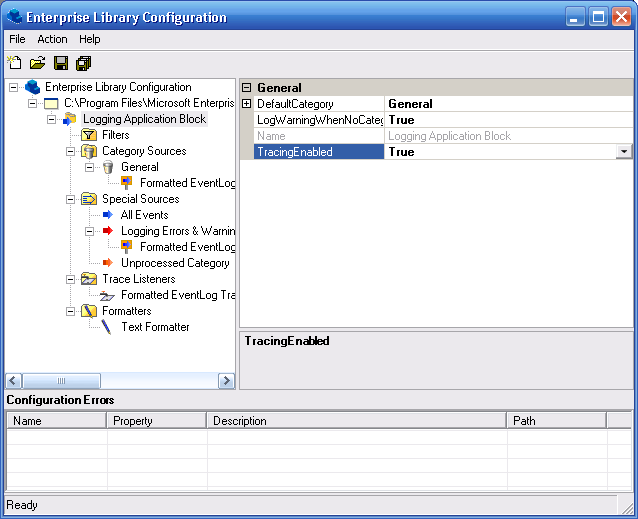
4.选择Logging Application Block节点,设置TracingEnabled属性为True。
5.添加新的TraceListener,选中Logging Application Block | Trace Listeners节点,并选择Action | New | FlatFile TraceListener菜单命令。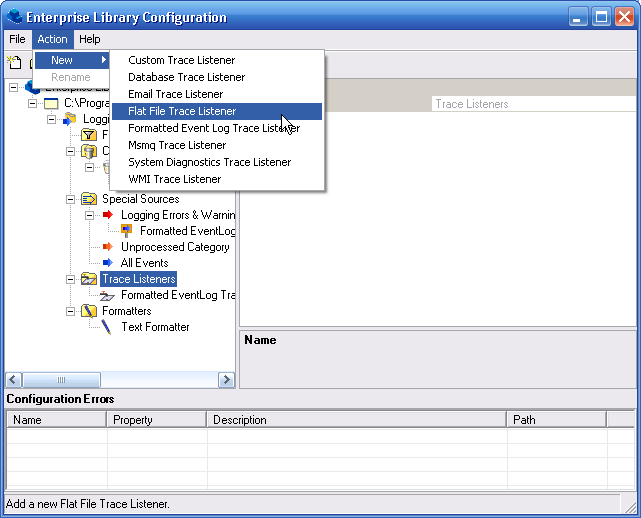
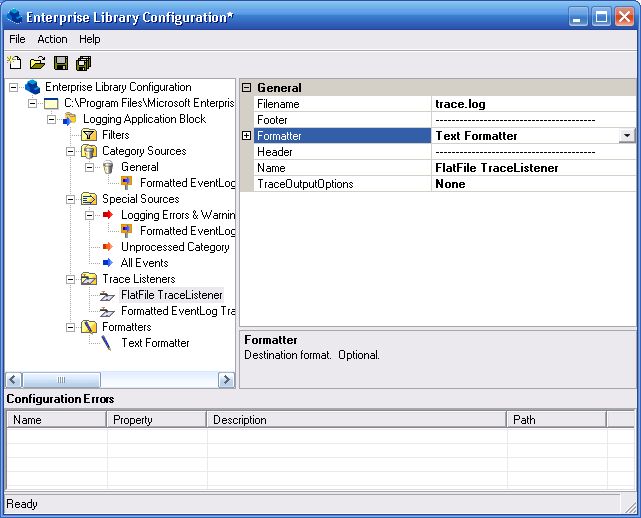
6.设置Formatter属性为Text Formatter。
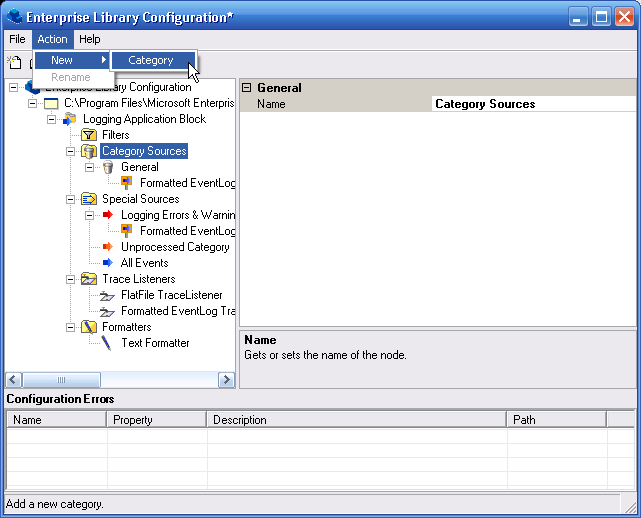
7.添加新的监测类别。选中Logging Application Block | Category Sources节点,并选择Action | New | Category菜单命令。
8.设置Name属性为Trace,SourceLevels属性为ActivityTracing。
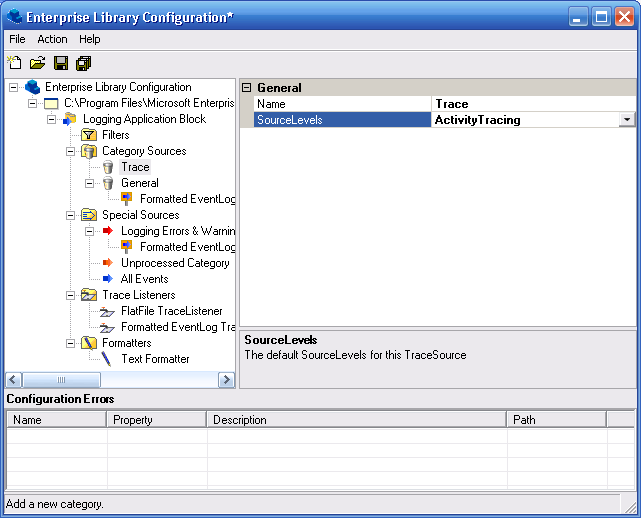
这里的类别名Trace将会在代码中使用,设置ActivityTracing级别只会在日志项开始和结束的时候记录监测日志信息。
9.右击新的类别Trace,并选择New | Trace Listener Reference,设置ReferencedTraceListener属性为FlatFile TraceListener。
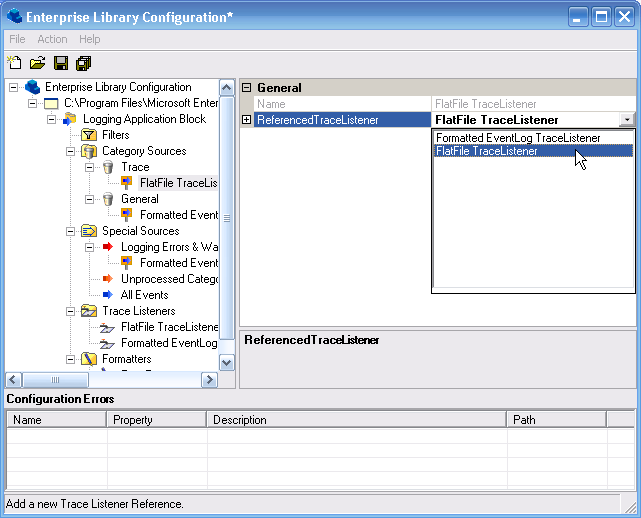
10.选择菜单File | Save All保存应用程序的配置,并关闭Enterprise Library Configuration工具。
11.选择Debug | Start Without Debugging菜单命令并运行应用程序,在NumericUpDown控件中输入精度并点击Calculate按钮。
12.现在可以在文件trace.log中看到监测日志信息。
----------------------------------------Timestamp: 13/12/2005 6:08:01 AMMessage: Start Trace: Activity '8c07ce3b-235b-4a51-bdcc-83a5997c989e' in method 'Calculate' at 71661842482 ticksCategory: TracePriority: 5EventId: 1Severity: StartTitle:TracerEnterMachine: TAGGERTApplication Domain: EnoughPI.exeProcess Id: 6016Process Name: C:\Program Files\Microsoft Enterprise Library\labs\cs\Logging\exercises\ex01\begin\EnoughPI\bin\Debug\EnoughPI.exeWin32 Thread Id: 6092Thread Name: Extended Properties: --------------------------------------------------------------------------------Timestamp: 13/12/2005 6:08:01 AMMessage: End Trace: Activity '8c07ce3b-235b-4a51-bdcc-83a5997c989e' in method 'Calculate' at 71662624219 ticks (elapsed time: 0.218 seconds)Category: TracePriority: 5EventId: 1Severity: StopTitle:TracerExitMachine: TAGGERTApplication Domain: EnoughPI.exeProcess Id: 6016Process Name: C:\Program Files\Microsoft Enterprise Library\labs\cs\Logging\exercises\ex01\begin\EnoughPI\bin\Debug\EnoughPI.exeWin32 Thread Id: 6092Thread Name: Extended Properties: ----------------------------------------13.关闭应用程序和Visual Studio。
完成后的解决方案代码如C:\Program Files\Microsoft Enterprise Library January 2006\labs\cs\Logging\exercises\ex01\end所示。
更多Enterprise Library的文章请参考《Enterprise Library系列文章》
Worktile,新一代简单好用、体验极致的团队协同、项目管理工具,让你和你的团队随时随地一起工作。完全免费,现在就去了解一下吧。
https://worktile.com

 浙公网安备 33010602011771号